 Connexion
STL Editing with FreeCAD
[Kevin] admits that FreeCAD may not be the ideal tool for editing STL files. But it is possible, and he shares some practical advice in the video below. If you want to get the most out of your 3D printer, it pays to be able to create new parts, and FreeCAD is a fine option for that. However, sometimes you download an STL from the Internet, and it just isn’t quite what you need.
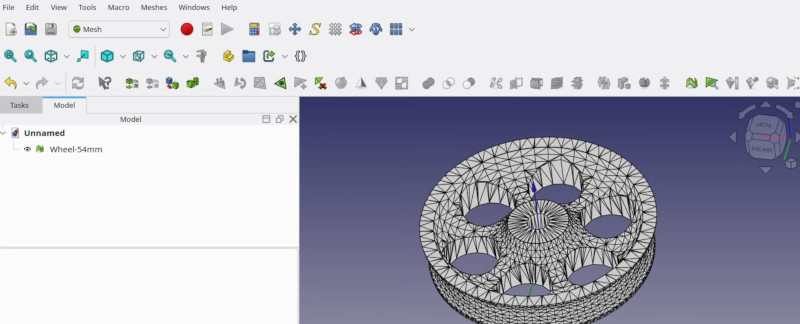
Unlike native CAD formats, STLs are meshes of triangles, so you get very large numbers of items, which can be unwieldy. The first trick is to get the object exactly centered. That’s easy if you know how, but not easy if you are just eyeballing it.
If you use the correct workbench, FreeCAD can analyze and fix mesh problems like non-manifold parts, flipped normals, and other issues. The example is a wheel with just over 6,000 faces, which is manageable. But complex objects may make FreeCAD slow. [Kevin] says you should be fine until the number of faces goes above 100,000. In that case, you can decimate the number of faces with, of course, a corresponding loss in resolution.
Once you are satisfied with the mesh, you can create a real FreeCAD shape from the mesh. The resulting object will be hollow, so the next step will be to convert the shape to a solid.
That still leaves many triangles when you really want flat surfaces to be, well, flat. The trick is to make a copy and use the “refine shape” option for the copy. Once you have a FreeCAD solid, you can do anything you can do in FreeCAD.
We’ve run our share of FreeCAD tips if you want more. There are other ways to tweak STLs, too.