pt
 |
Snyppets - Python snippets |
|
|
This page contains a bunch of miscellaneous Python code
snippets, recipes, mini-guides, links, examples, tutorials and
ideas, ranging from very (very) basic things to
advanced. I hope they will be usefull to you. All snippets are kept in
a single HTML page so that you can easily ❶save
it for offline reading (and keep on a USB key) ❷search in it.
Note that scripts that do some web-scraping may not work anymore due to
website changes. The web is an evolving beast :-)
(Don't forget to read my main Python page ( http://sebsauvage.net/python/
): there is handful of other programs and a guides.)
Advertising
To avoid dodgy websites,
install WOT
Send
a file using FTP
Piece of cake.
import ftplib
# We import
the FTP module
session = ftplib.FTP('myserver.com','login','passord') # Connect to
the FTP server
myfile = open('toto.txt','rb')
# Open the file to
send
session.storbinary('STOR toto.txt', myfile)
# Send the file
myfile.close()
# Close the file
session.quit()
# Close FTP session
Queues
(FIFO) and
stacks (LIFO)
Python makes using queues and stacks a piece of cake (Did I
already say "piece of cake" ?).
No use creating a specific class: simply use list
objects.
For a stack
(LIFO),
stack with append()
and
destack with
pop():
>>> a = [5,8,9]
>>> a.append(11)
>>> a
[5, 8, 9, 11]
>>> a.pop()
11
>>> a.pop()
9
>>> a
[5, 8]
>>>
For a queue
(FIFO), enqueue
with append()
and dequeue
with pop(0):
>>> a = [5,8,9]
>>> a.append(11)
>>> a
[5, 8, 9, 11]
>>> a.pop(0)
5
>>> a.pop(0)
8
>>> a
[9, 11]
As lists can contain any type of object, you an create queues and
stacks of any type of objects !
(Note that there is also a Queue
module, but it is
mainly usefull with threads.)
A
function which returns
several values
When you're not accustomed with Python, it's easy to forget
that
a function can return just any type of object, including
tuples.
This a great to create functions which return several values. This
is typically the kind of thing that cannot be done in other
languages without some code overhead.
>>> def
myfunction(a):
return (a+1,a*2,a*a)
>>> print myfunction(3)
(4, 6, 9)
You can also use mutiple assignment:
>>> (a,b,c) =
myfunction(3)
>>> print b
6
>>> print c
9
And of course your functions can return any
combination/composition of objects (strings, integer, lists,
tuples, dictionnaries, list of tuples, etc.).
Exchanging
the content of
2 variables
In most languages, exchanging the content of two variable
involves using a temporary variable.
In Python, this can be done with multiple assignment.
>>> a=3
>>> b=7
>>> (a,b)=(b,a)
>>> print a
7
>>> print b
3
In Python, tuples, lists and dictionnaries are your friends,
really !
Highly recommended reading: Dive
into Python
(http://diveintopython.net/).
The
first chapter contains a nice tutorial on tuples, lists and
dictionnaries. And don't forget to read the rest of the book (You
can download the entire book for free).
Getting
rid of duplicate items in a list
The trick is to temporarly convert the list in into a
dictionnary:
>>> mylist =
[3,5,8,5,3,12]
>>> print dict().fromkeys(mylist).keys()
[8, 3, 12, 5]
>>>
Since Python 2.5, you can also use sets:
>>> mylist =
[3,5,8,5,3,12]
>>> print list(set(mylist))
[8, 3, 12, 5]
>>>
Get
all links in a web
page (1)
... or regular expression marvels.
import re, urllib
htmlSource =
urllib.urlopen("http://sebsauvage.net/index.html").read(200000)
linksList = re.findall('<a
href=(.*?)>.*?</a>',htmlSource)
for link in linksList:
print link
Get
all links in a web
page (2)
You can also use the HTMLParser module.
import HTMLParser, urllib
class linkParser(HTMLParser.HTMLParser):
def __init__(self):
HTMLParser.HTMLParser.__init__(self)
self.links = []
def handle_starttag(self, tag, attrs):
if tag=='a':
self.links.append(dict(attrs)['href'])
htmlSource =
urllib.urlopen("http://sebsauvage.net/index.html").read(200000)
p = linkParser()
p.feed(htmlSource)
for link in p.links:
print link
For each HTML start tag encountered, the
handle_starttag() method will be called.
For example <a href="http://google.com>
will trigger the method
handle_starttag(self,'A',[('href','http://google.com')]).
See also all others handle_*()
methods in Pyhon
manual.
(Note that HTMLParser is not
bullet-proof: it will
choke on ill-formed HTML. In this case, use the
sgmllib module, go back to regular expressions
or use
BeautifulSoup.)
Get
all links in a web
page (3)
Still hungry ?
Beautiful
Soup is a Python module which is quite good at extracting
data from HTML.
Beautiful Soup's main advantages are its ability to handle very bad
HTML code and its simplicity. Its drawback is its speed (it's
slow).
You can get it from http://www.crummy.com/software/BeautifulSoup/
import urllib
import BeautifulSoup
htmlSource =
urllib.urlopen("http://sebsauvage.net/index.html").read(200000)
soup = BeautifulSoup.BeautifulSoup(htmlSource)
for item in soup.fetch('a'):
print item['href']
Get
all links in a web
page (4)
Still there ?
Ok, here's another one:
Look ma ! No parser nor regex.
import urllib
htmlSource =
urllib.urlopen("http://sebsauvage.net/index.html").read(200000)
for chunk in htmlSource.lower().split('href=')[1:]:
indexes = [i for i in
[chunk.find('"',1),chunk.find('>'),chunk.find(' ')] if
i>-1]
print chunk[:min(indexes)]
Granted, this is a crude hack.
But it works !
Zipping/unzipping
files
Zipping a file:
import zipfile
f = zipfile.ZipFile('archive.zip','w',zipfile.ZIP_DEFLATED)
f.write('file_to_add.py')
f.close()
Replace 'w' with 'a'
to add files to
the zip archive.
Unzipping all files from a zip archive:
import zipfile
zfile = zipfile.ZipFile('archive.zip','r')
for filename in zfile.namelist():
data = zfile.read(filename)
file = open(filename, 'w+b')
file.write(data)
file.close()
If you want to zip all file in a directory recursively (all
subdirectories):
import zipfile
f = zipfile.ZipFile('archive.zip','w',zipfile.ZIP_DEFLATED)
startdir = "c:\\mydirectory"
for dirpath, dirnames,
filenames in os.walk(startdir):
for filename in filenames:
f.write(os.path.join(dirpath,filename))
f.close()
Listing
the content of a
directory
You have 4 ways of doing this, depending on your need.
The listdir() method returns the
list of all files
in a directory:
import os
for filename in os.listdir(r'c:\windows'):
print filename
Note that you can use the fnmatch()
module to
filter file names.
The glob module wraps listdir() and
fnmatch() into a single method:
import glob
for filename in glob.glob(r'c:\windows\*.exe'):
print filename
And if you need to collect subdirectories, use
os.path.walk():
import os.path
def processDirectory ( args, dirname, filenames ):
print 'Directory',dirname
for filename in filenames:
print '
File',filename
os.path.walk(r'c:\windows', processDirectory, None )
os.path.walk() works with a callback:
processDirectory() will be called for each
directory
encountered.
dirname will contain the path of the directory.
filenames will contain a list of filenames in
this
directory.
You can also use os.walk(), which works in
a
non-recursive way and is somewhat easier to understand.
import os
for dirpath, dirnames, filenames in os.walk('c:\\winnt'):
print 'Directory', dirpath
for filename in filenames:
print ' File',
filename
A
webserver in 3 lines
of code
import BaseHTTPServer,
SimpleHTTPServer
server =
BaseHTTPServer.HTTPServer(('',80),SimpleHTTPServer.SimpleHTTPRequestHandler)
server.serve_forever()
This webserver will serve files in the current directory. You
can use os.chdir() to change the directory.
This trick is handy to serve or transfer files between computers on
a local network.
Note that this webserver is pretty fast, but can only serve
one
HTTP request at time. It's not recommended for high-traffic
servers.
If you want better performance, have a look at asynchronous sockets
(asyncore, Medusa...) or multi-thread webservers.
Creating
and raising
your own exceptions
Do not consider exception as nasty things
which want
to break you programs. Exceptions are you friend. Exceptions are a
Good Thing. Exceptions are messengers which tell you that
something's wrong, and what is wrong. And try/except blocks will
give you the chance to handle the problem.
In your programs, you should also try/catch
all calls
that may fall into error (file access, network connections...).
It's often usefull to define your own
exceptions to
signal errors specific to your class/module.
Here's an example of defining an exception
and a class
(say in myclass.py):
class myexception(Exception):
pass
class myclass:
def __init__(self):
pass
def dosomething(self,i):
if i<0:
raise myexception, 'You made a mistake !'
(myexception is a
no-brainer exception:
it contains nothing. Yet, it is usefull because the exception
itself is a message.)
If you use the class, you could do:
import myclass
myobject = myclass.myclass()
myobject.dosomething(-2)
If you execute this program, you will get:
Traceback (most recent call last):
File "a.py", line 3, in ?
myobject.dosomething(-2)
File "myclass.py", line 9, in dosomething
raise myexception, 'You made a mistake !'
myclass.myexception: You made a mistake !
myclass tells you
you did something
wrong. So you'd better try/catch, just in case there's a
problem:
import myclass
myobject = myclass.myclass()
try:
myobject.dosomething(-2)
except myclass.myexception:
print 'oops ! myclass tells me I did
something
wrong.'
This is better ! You have a chance to do something if
there's a problem.
Scripting
Microsoft SQL Server
with Python
If you have Microsoft SQL Server, you must have encountered
this
situation where you tell yourself «If only I was able to
script all those clicks in Enterprise Manager (aka the
MMC) !».
You can ! It's possible to script in Python whatever you can
do
in the MMC.
You just need the win32all python module
to access COM
objects from within Python (see http://starship.python.net/crew/mhammond/win32/)
(The win32all module is also provided with ActiveState's Python
distribution: http://www.activestate.com/Products/ActivePython/)
Once installed, just use the SQL-DMO objects.
For example, get the list of databases in a server:
from win32com.client import gencache
s = gencache.EnsureDispatch('SQLDMO.SQLServer')
s.Connect('servername','login','password')
for i in range(1,s.Databases.Count):
print s.Databases.Item(i).Name
Or get the script of a table:
database = s.Databases('COMMERCE')
script = database.Tables('CLIENTS').Script()
print script
You will find the SQL-DMO documentation in MSDN:
Accessing
a database with
ODBC
Under Windows, ODBC provides an easy way to access almost any
database. It's not very fast, but it's ok.
You need the win32all
python module.
First, create a DSN (for example: 'mydsn'), then:
import dbi, odbc
conn = odbc.odbc('mydsn/login/password')
c = conn.cursor()
c.execute('select clientid, name, city from client')
print c.fetchall()
Nice and easy !
You can also use fetchone() or
fetchmany(n) to fetch - respectively - one or
n rows at once.
Note : On big datasets, I have quite bizarre and
unregular
data truncations on tables with a high number of columns. Is that a
bug in ODBC, or in the SQL Server ODBC driver ? I will have to
investigate...
Accessing
a database with ADO
Under Windows, you can also use ADO (Microsoft
ActiveX Data
Objects) instead of ODBC to access databases. The following
code uses ADO COM objects to connect to a Microsoft SQL Server
database, retreive and display a table.
import win32com.client
connexion =
win32com.client.gencache.EnsureDispatch('ADODB.Connection')
connexion.Open("Provider='SQLOLEDB';Data Source='myserver';Initial Catalog='mydatabase';User ID='mylogin';Password='mypassword';")
recordset = connexion.Execute('SELECT clientid, clientName FROM
clients')[0]
while not recordset.EOF:
print
'clientid=',recordset.Fields(0).Value,'
client name=',recordset.Fields(1).Value
recordset.MoveNext()
connexion.Close()
For ADO documentation, see MSDN:
http://msdn.microsoft.com/library/en-us/ado270/htm/mdmscadoobjects.asp
CGI
under Windows with
TinyWeb
TinyWeb is a one-file webserver for Windows (the exe is only
53
kb). It's fantastic for making instant webservers and share files.
TinyWeb is also capable of serving CGI.
Let's have some fun and create some CGI with Python !
First, let's get and install TinyWeb:
- Get TinyWeb from http://www.ritlabs.com/tinyweb/
(it's free, even for commercial use !) and unzip it to
c:\somedirectory (or any directory you'd
like).
- Create the "
www" subdirectory in
this
directory
- Create
index.html in the www
directory:
<html><body>Hello,
world
!</body></html>
- Run the server:
tiny.exe c:\somedirectory\www
(make sure you use an absolute path)
- Point your browser at
http://localhost
If you see "Hello, world !", it means that TinyWeb is up and
running.
Let's start making some CGI:
- In the
www directory, create the
"cgi-bin" subdirectory.
- Create
hello.py containing:
print "Content-type: text/html"

print

print "Hello, this is Python talking !"
- Make sure Windows always uses
python.exe
when you
double-clic .py files.
(SHIFT+rightclick on a .py file, "Open with...",
choose
python.exe,
check the box "Always use this program...", click Ok)
- Point your browser at
http://localhost/cgi-bin/hello.py
You should see "Hello, this is Python talking !"
(and
not the source code).
If it's ok, you're done !
Now you can make some nice CGI.
(If this does not work, make sure the path to python.exe is ok
and that you used an absolute path in tinyweb's command line.)
Note that this will never be as fast as mod_python under
Apache
(because TinyWeb will spawn a new instance of the Python
interpreter for each request on a Python CGI). Thus it's not
appropriate for high-traffic production servers, but for a small
LAN, it can be quite handy to serve CGI like this.
Refer to Python documentation for CGI tutorials and
reference.
Creating
.exe files from
Python programs
Like Sun's Java or Microsoft's .Net,
if you want to
distribute your Python programs, you need to bundle the virtual
machine too.
You have several options: py2exe,
cx_Freeze or
pyInstaller.
py2exe
py2exe provides an easy way to gather all necessary files to
distribute your Python program on computers where Python is not
installed.
For example, under Windows, if you want to transform
myprogram.py into myprogram.exe,
create
the file setup.py as follows:
from distutils.core import setup
import py2exe
setup(name="myprogram",scripts=["myprogram.py"],)
Then run:
python setup.py py2exe
py2exe will get all dependant files and write them in the
\dist subdirectory. You will typically find
your
program as .exe, pythonXX.dll
and
complementary .pyd files. Your program will
run on any
computer even if Python is not installed. This also works for
CGI.
(Note that if your program uses tkinter, there is a trick.)
Hint : Use UPX to compress
all
dll/exe/pyd
files. This will
greatly reduce file size. Use:
upx --best *.dll *.exe *.pyd
(Typically, python22.dll shrinks from 848 kb
to 324
kb.)
Note that since version 0.6.1, py2exe is capable of creating a single EXE
(pythonXX.dll and
other files are integrated into the EXE).
#!/usr/bin/python
# -*- coding: iso-8859-1 -*-
from distutils.core import setup
import py2exe
setup(
options = {"py2exe": {"compressed": 1,
"optimize": 0,
"bundle_files": 1, } },
zipfile = None,
console=["myprogram.py"]
)
cx_Freeze
You can also use cx_Freeze, which is an
alternative to
py2exe (This is what I used in webGobbler).
cx_Freeze\FreezePython.exe
--install-dir bin
--target-name=myprogram.exe myprogram.py
or even create a console-less version:
cx_Freeze\FreezePython.exe
--install-dir bin
--target-name=myprogram.exe
--base-binary=Win32GUI.exe myprogram.py
Tip for the console-less
version: If you try to print
anything, you will
get a nasty error window, because stdout and stderr do not exist
(and the cx_freeze Win32gui.exe stub will display an error
Window).
This is a pain when you want your program to be able to run in GUI
mode and
command-line
mode.
To safely disable console output, do as follows at the beginning of
your program:
try:
sys.stdout.write("\n")
sys.stdout.flush()
except IOError:
class dummyStream:
''' dummyStream behaves
like a stream but does nothing. '''
def __init__(self):
pass
def write(self,data):
pass
def read(self,data):
pass
def flush(self):
pass
def close(self):
pass
# and now redirect all default streams
to this
dummyStream:
sys.stdout = dummyStream()
sys.stderr = dummyStream()
sys.stdin = dummyStream()
sys.__stdout__ = dummyStream()
sys.__stderr__ = dummyStream()
sys.__stdin__ = dummyStream()
This way, if the program starts in console-less mode, it will work
even if the code contains print statements.
And if run in command-line mode, it will print out as usual. (This
is basically what I did in webGobbler, too.)
pyInstaller
pyInstaller
is the
reincarnation of McMillan
Installer. It can also create one-file executables.
You can get it from http://pyinstaller.hpcf.upr.edu/cgi-bin/trac.cgi/wiki
Unzip pyInstaller in the pyinstaller_1.1 subdirectory, then do:
python pyinstaller_1.1\Configure.py
(You only have to do this once.)
Then create the .spec file for your program:
python pyinstaller_1.1\Makespec.py
myprogram.py myprogram.spec
Then pack your program:
python pyinstaller_1.1\Build.py
myprogram.spec
You program will be available in the \distmyprogram
subdirectory. (myprogram.exe, pythonXX.dll, MSVCR71.dll, etc.)
You have several options, such as:
Reading
Windows
registry
import _winreg
key = _winreg.OpenKey(_winreg.HKEY_CURRENT_USER,
'Software\\Microsoft\\Internet Explorer',
0, _winreg.KEY_READ)
(value, valuetype) = _winreg.QueryValueEx(key, 'Download
Directory')
print value
print valuetype
valuetype is the type of the registry key. See
http://docs.python.org/lib/module--winreg.html
Measuring
the performance of
Python programs
Python is provided with a code profiling module:
profile. It's rather easy
to use.
For example, if you want to profile myfunction(), instead of
calling it with:
myfunction()
you just have to do:
import profile
profile.run('myfunction()','myfunction.profile')
import pstats
pstats.Stats('myfunction.profile').sort_stats('time').print_stats()
This will display a report like this:
Thu Jul 03 15:20:26
2003
myfunction.profile
1822 function
calls (1792 primitive calls) in 0.737 CPU seconds
Ordered by: internal time
ncalls tottime
percall cumtime
percall filename:lineno(function)
1
0.224 0.224
0.279 0.279 myprogram.py:512(compute)
10
0.078 0.008
0.078 0.008 myprogram.py:234(first)
1
0.077 0.077
0.502 0.502 myprogram.py:249(give_first)
1
0.051 0.051
0.051 0.051 myprogram.py:1315(give_last)
3
0.043 0.014
0.205 0.068 myprogram.py:107(sort)
1
0.039 0.039
0.039 0.039 myprogram.py:55(display)
139
0.034 0.000
0.106 0.001 myprogram.py:239(save)
139
0.030 0.000
0.072 0.001 myprogram.py:314(load)
...
This report tells you, for each function/method:
- how many times it was called (
ncalls).
- total time spent in function (minus time spent in
sub-functions) (
tottime)
- total time spent in function (including time spent in
sub-functions) (
cumtime)
- average time per call (
percall)
As you can see, the profile module displays the precise
filename, line and function name. This is precious information and
will help you to spot the slowest parts of your programs.
But don't try to optimize too early in development stage. This
is evil ! :-)
Note that Python is also provided with a similar module named
hotspot, which
is more
accurate but does not work well with threads.
Speed
up your Python
programs
To speedup your Python program, there's nothing like
optimizing
or redesigning your algorithms.
In case you think you can't do better, you can always use
Psyco:
Psyco is a Just-In-Time-like compiler for Python for Intel
80x86-compatible processors. It's very easy to use and provides x2
to x100 instant speed-up.
- Download psyco for your Python version (http://psyco.sourceforge.net)
- unzip and copy the
\psyco
directory to your Python
site-packages directory (should be something like
c:\pythonXX\Lib\site-packages\psyco\ under
Windows)
Then, put this at the beginning of your programs:
import psyco
psyco.full()
Or even better:
try:
import psyco
psyco.full()
except:
pass
This way, if psyco is installed, your program will run
faster.
If psyco is not available, your program will run as usual.
(And if psyco is still not enough, you can rewrite the code
which is too slow in C or C++ and wrap it with SWIG (http://swig.org).)
Note: Do not use Psyco when debugging, profiling or tracing
your
code. You may get innacurate results and strange
behaviours.
Regular
expressions are
sometimes overkill
I helped someone on a forum who wanted process a text file: He
wanted to extract the text following "Two words" in all lines
starting whith these 2 word. He had started writing a regular
expression for this:
r = re.compile("Two\sword\s(.*?)").
His problem was better solved with:
[...]
for line in file:
if line.startswith("Two words "):
print line[10:]
Regular expression are sometime overkill. They are not always
the best choice, because:
- They involve some overhead:
- You have to compile the regular expression
(
re.compile()). This means parsing the regular
expression and transforming it into a state machine. This consumes
CPU time.
- When using the regular expression, you run the state
machine
against the text, which make the state machine change state
according to many rules. This is also eats CPU time.
- Regular expression are not failsafe: they can fail
sometimes on
specific input. You may get a "maximum recusion limit
exceeded" exception. This means that you should also enclose
all
match(), search()
and
findall() methods in try/except
blocks.
- The Zen of Python (
import this :-)
says
«Readability counts». That's a good thing. And
regular expression quickly become difficult to read, debug and
change.
Besides, string methods like find(),
rfind() or startwith()
are very
fast, much faster than regular expressions.
Do not try to use regular expressions everywhere.
Often a
bunch of string operations will do the job faster.
Executing
another Python
program
exec("anotherprogram.py")
Bayesian
filtering
Bayesian filtering is the last buzz-word of spam fighting. And
it works very well indeed !
Reverend is a free Bayesian module for
Python. You can
download it from http://divmod.org/trac/wiki/DivmodReverend
Here's an example: Recognizing the language of a text.
First, train it on a few sentences:
from reverend.thomas import Bayes
guesser = Bayes()
guesser.train('french','La souris est rentrée dans son
trou.')
guesser.train('english','my tailor is rich.')
guesser.train('french','Je ne sais pas si je viendrai demain.')
guesser.train('english','I do not plan to update my website
soon.')
And now let it guess the language:
>>> print
guesser.guess('Jumping
out of cliffs it not a good idea.')
[('english', 0.99990000000000001), ('french',
9.9999999999988987e-005)]
The bayesian filter says: "It's english, with a
99,99%
probability."
Let's try another one:
>>> print
guesser.guess('Demain il
fera très probablement chaud.')
[('french', 0.99990000000000001), ('english',
9.9999999999988987e-005)]
It says: "It's french, with a 99,99% probability."
Not bad, isn't it ?
You can train it on even more languages at the same time. You
can also train it to classify any kind of text.
Tkinter
and cx_Freeze
(This trick also works with py2exe).
Say you want to package a Tkinter Python program with cx_Freeze
in order to distribute it.
You create your program:
#!/usr/bin/python
# -*- coding: iso-8859-1 -*-
import Tkinter
class myApplication:
def __init__(self,root):
self.root = root
self.initializeGui()
def initializeGui(self):
Tkinter.Label(self.root,text="Hello,
world").grid(column=0,row=0)
def main():
root = Tkinter.Tk()
root.title('My application')
app = myApplication(root)
root.mainloop()
if __name__ == "__main__":
main()
This program works on your computer. Now let's package it
with cx_Freeeze:
FreezePython.exe --install-dir bin
--target-name=test.exe test.py
If you run your program (test.exe), you will get
this error:
The dynamic link library tk84.dll
could not
be found in the specified path [...]
In fact, you need to copy the TKinter DLLs. Your builing batch
becomes:
FreezePython.exe --install-dir bin
--target-name=test.exe test.py
copy C:\Python24\DLLs\tcl84.dll .\bin\
copy C:\Python24\DLLs\tk84.dll .\bin\
Ok, john, build it again.
Run the EXE: it works !
Run the EXE on another computer (which does not have Python
installed): Error !
Traceback (most recent call last):
File "cx_Freeze\initscripts\console.py", line 26, in ?
exec code in m.__dict__
File "test.py", line 20, in ?
File "test.py", line 14, in main
File "C:\Python24\Lib\lib-tk\Tkinter.py", line 1569, in
__init__
_tkinter.TclError: Can't find a usable init.tcl in the following
directories:
[...]
Nasty, isn't it ?
The reason it fails is that Tkinter needs the runtime tcl scripts
which are located in C:\Python24\tcl\tcl8.4 and
C:\Python24\tcl\tk8.4.
So let's copy these scripts in the same directory as you
application.
You building batch becomes:
cx_Freeze\FreezePython.exe
--install-dir bin
--target-name=test.exe test.py
copy C:\Python24\DLLs\tcl84.dll .\bin\
copy C:\Python24\DLLs\tk84.dll .\bin\
xcopy /S /I /Y "C:\Python24\tcl\tcl8.4\*.*"
"bin\libtcltk84\tcl8.4"
xcopy /S /I /Y "C:\Python24\tcl\tk8.4\*.*"
"bin\libtcltk84\tk8.4"
But you also need to tell your program where to get the tcl/tk
runtime scripts (in bold below):
#!/usr/bin/python
# -*- coding: iso-8859-1 -*-
import os, os.path
# Take the tcl/tk library from local subdirectory if available.
if os.path.isdir('libtcltk84'):
os.environ['TCL_LIBRARY'] =
'libtcltk84\\tcl8.4'
os.environ['TK_LIBRARY'] =
'libtcltk84\\tk8.4'
import Tkinter
class myApplication:
def __init__(self,root):
self.root = root
self.initializeGui()
def initializeGui(self):
Tkinter.Label(self.root,text="Hello,
world").grid(column=0,row=0)
def main():
root = Tkinter.Tk()
root.title('My application')
app = myApplication(root)
root.mainloop()
if __name__ == "__main__":
main()
Now you can properly package and distribute Tkinter-enabled
applications. (I used this trick in webGobbler.)
Possible improvement:
You surely could get rid of some tcl/tk script you don't need.
Example: bin\libtcltk84\tk8.4\demos (around 500 kb) are only
tk demonstrations. They are not necessary.
This depends on which features of Tkinter your program will
use.
(cx_Freeze and - AFAIK - all other packagers are not capable
of resolving tcl/tk dependencies.)
A
few Tkinter
tips
Tkinter is the basic GUI toolkit provided with Python.
Here's a simple example:
import Tkinter
class myApplication:
#1
def __init__(self,root):
self.root = root
#2
self.initialisation()
#3
def initialisation(self):
#3
Tkinter.Label(self.root,text="Hello,
world !").grid(column=0,row=0) #4
def main():
#5
root = Tkinter.Tk()
root.title('My application')
app = myApplication(root)
root.mainloop()
if __name__ == "__main__":
main()
#1 : It's always better to code a GUI in the form of
a
class. It will be easier to reuse your GUI components.
#2 : Always keep a reference to your ancestor. You
will need
it when adding widgets.
#3 : Keep the code which creates all the widgets
clearly
separated from the rest of the code. It will be easier to
maintain.
#4 : Do not use the .pack().
It's usually
messy, and painfull when you want to extend your GUI.
grid() lets you place and move your widgets
elements
easily. Never ever mix .pack() and
.grid(), or your application will hang without
warning, with 100% CPU usage.
#5 : It's always a good idea to have a main()
defined. This way, you can test the GUI elements by directly by
running the module.
I lack time, so this list of recommendations could be much larger
after my experience with webGobbler.
Tkinter
file
dialogs
Tkinter is provided with several basic dialogs for file or
directory handling. There's pretty easy to use, but it's good to
have some examples:
Select a directory:
import Tkinter
import tkFileDialog
root = Tkinter.Tk()
directory =
tkFileDialog.askdirectory(parent=root,initialdir="/",title='Please
select a directory')
if len(directory) > 0:
print "You chose directory %s"
% directory
Select a file for open (askopenfile
will open
the file for you. file will behave like a
normal file
object):
import Tkinter
import tkFileDialog
root = Tkinter.Tk()
file = tkFileDialog.askopenfile(parent=root,mode='rb',title='Please
select a file')
if file != None:
data = file.read()
file.close()
print "I got %d bytes from the file." %
len(data)
Save as... dialog:
import Tkinter
import tkFileDialog
myFormats = [
('Windows Bitmap','*.bmp'),
('Portable Network Graphics','*.png'),
('JPEG / JFIF','*.jpg'),
('CompuServer GIF','*.gif'),
]
root = Tkinter.Tk()
filename =
tkFileDialog.asksaveasfilename(parent=root,filetypes=myFormats,title="Save
image as...")
if len(filename) > 0:
print "Now saving as %s"
% (filename)
Including
binaries in your
sources
Sometime it's handy to include small files in your sources (icons,
test files, etc.)
Let's take a file (myimage.gif) and convert it in base64
(optionnaly compressing it with zlib):
import base64,zlib
data = open('myimage.gif','rb').read()
print base64.encodestring(zlib.compress(data))
Get the text created by this program and use it in your source:
import base64,zlib
myFile = zlib.decompress(base64.decodestring("""
eJxz93SzsExUZlBn2MzA8P///zNnzvz79+/IgUMTJ05cu2aNaBmDzhIGHj7u58+fO11ksLO3Kyou
ikqIEvLkcYyxV/zJwsgABDogAmQGA8t/gROejlpLMuau+j+1QdQxk20xwzqhslmHH5/xC94Q58ST
72nRllBw7cUDHZYbL8VtLOYbP/b6LhXB7tAcfPCpHA/fSvcJb1jZWB9c2/3XLmQ+03mZBBP+GOak
/AAZGXPL1BJe39jqjoqEAhFr1fBi1dao9g4Ovjo+lh6GFDVWJqbisLKoCq5p1X5s/Jw9IenrFvUz
+mRXTeviY+4p2sKUflA1cjkX37TKWYwFzRpFYeqTs2fOqEuwXsfgOeGCfmZ57MP4WSpaZ0vSJy97
WPeY5ca8F1sYI5f5r2bjec+67nmaTcarm7+Z0hgY2Z7++fpCzHmBQCrPF94dAi/jj1oZt8R4qxsy
6liJX/UVyLjwoHFxFK/VMWbN90rNrLKMGQ7iQSc7mXgTkpwPXVp0mlWz/JVC4NK0s0zcDWkcFxxF
mrvdlBdOnBySvtNvq8SBFZo8rF2MvAIMoZoPmZrZPj2buEDr2isXi0V8egpelyUvbXNc7yVQkKgS
sM7g0KOr7kq3WRIkitSuRj1VXbSk8v4zh8fljqtOhyobP91izvh0c2hwqKz3jPaHhvMMXVQspYq8
aiV9ivkmHri5u2NH8fvPpVWuK65I3OMUX+f4Lee+3Hmfux96Vq5RVqxTN38YeK3wRbVz5v06FSYG
awWFgMzkktKiVIXkotTEktQUhaRKheDUpMTikszUPIVgx9AwR3dXBZvi1KTixNKyxPRUhcQSBSRe
Sn6JQl5qiZ2CrkJGSUmBlb4+QlIPKKGgAADBbgMp"""))
print "I have a file of %d bytes." % len(myFile)
For example, if you use PIL (Python Imaging Library), you can
directly open this image:
import Image,StringIO
myimage = Image.open(StringIO.StringIO(myFile))
myimage.show()
Good
practice: try/except non-standard import statements
If your program uses modules which are not part of the standard
Python distribution, it can be a pain for your users to identify
which module are required and where to get them.
Ease their pain with a simple try/except statement which tells
the module name (which is not always the same name as stated in the
import statement) and where to get it.
Example:
try:
import win32com.client
except ImportError:
raise ImportError, 'This program requires the
win32all extensions for Python. See
http://starship.python.net/crew/mhammond/win32/'
Good
practice: Readable objects
Let's define a "client" class. Each client has a name and a
number.
class client:
def __init__(self,number,name):
self.number
= number
self.name = name
Now if we create an instance of this class and if we display
it:
my_client = client(5,"Smith")
print my_client
You get:
<__main__.client instance at
0x007D0E40>
Quite exact, but not very explicit.
Let's improve that and add a __repr__ method:
class client:
def __init__(self,number,name):
self.number
= number
self.name = name
def
__repr__(self):
return '<client id="%s" name="%s">' % (self.number,
self.name)
Let's do it again:
my_client = client(5,"Smith")
print my_client
We get:
<client id="5"
nom="Dupont">
Ah !
Much better. Now this object has a meaning to you.
It's much better for debugging or logging.
You can even apply this to compound objects, such as a client
directory:
class directory:
def __init__(self):
self.clients = []
def addClient(self, client):
self.clients.append(client)
def __repr__(self):
lines = []
lines.append("<directory>")
for client in
self.clients:
lines.append(" "+repr(client))
lines.append("</directory>")
return
"\n".join(lignes)
Then create a directory, and add clients to this directory:
my_directory = directory()
my_directory.addClient( client(5,"Smith") )
my_directory.addClient( client(12,"Doe") )
print my_directory
You'll get:
<directory>
<client id="5" name="Smith">
<client id="12" name="Doe">
</directory>
Much better, isn't it ?
This trick - which is not exclusive to Python - is handy for
debugging or logging.
For example, if your program goes tits ups, you can log the objects
states in a file for debugging purposes in the except
clause of a try/except block.
Good
practice: No
blank-check read()
When you read a file or a socket, you often use simply
.read(), such as:
# Read from a file:
file = open("a_file.dat","rb")
data = file.read()
file.close()
# Read from an URL:
import urllib
url = urllib.urlopen("http://sebsauvage.net")
html = url.read()
url.close()
But what happens if the file is 40 Gb, or the website sends data
non-stop ?
You program will eat all the system's memory, slow down to a crawl
and probably crash the system too.
You should always bound
your
read().
For example, I do not expect to process files larger than 10 Mb,
nor read HTML pages larger than 200 kb, so I would write:
# Read from a file:
file = open("a_file.dat","rb")
data = file.read(10000000)
file.close()
# Read from an URL:
import urllib
url = urllib.urlopen("http://sebsauvage.net")
html = url.read(200000)
url.close()
This way, I'm safe from buggy or malicious external data
sources.
Always be cautious when manipulating data you have no control over
!
...er, finally, be also
cautious with your own data, too.
Shit happens.
1.7
is different
than 1.7 ?
This is a common pitfall amongst novice programmers:
Never confuse data and it's representation on
screen.
When you see a floating number 1.7, you only see a textual representation
of the
binary data stored in
computer's
memory.
When you use a date, such as :
>>> import
datetime
>>> print datetime.datetime.now()
2006-03-21 15:23:20.904000
>>>
"2006-03-21 15:23:20.904000" is NOT the
date. It's a textual
representation of the date (The real date is
binary
data in the computer's memory).
The print statement seems to be trivial, but
it's not.
It involves complex work in order to create a human-readable
representation of various binary data formats. This is not trivial,
even for a simple integer.
This leads to pitfalls, such as:
a = 1.7
b = 0.9 + 0.8 # This should be 1.7
print a
print b
if a == b:
print "a and b are equal."
else:
print "a and b are different !"
What do you expect this code to print ? "a and b are equal ?".
You're wrong !
1.7
1.7
a and b are different !
How can this be ?
How can 1.7 be different than 1.7 ?
Remember the two "1.7" are just textual
representation of numbers,
which are almost
equal to
1.7.
The program says they are different because a and b are different at
the binary level.
Only their textual representation is the same.
Thus for comparing floating numbers, use the following tricks:
if abs(a-b)
< 0.00001:
print "a and b are equal."
else:
print "a and b are different !"
or even:
if str(a) == str(b):
print "a and b are equal."
else:
print "a and b are different !"
Why is 0.9+0.8 different than 1.7 ?
Because the computer can only handle bits, and you cannot precisely
represent all numbers in binary.
The computer is good a storing values such as 0.5 (which is 0.1 in
binary), or 0.125 (which is 0.001 in binary).
But it's not capable of storing the exact value 0.3 (because there
is no exact representation of 0.3 in binary).
Thus, as soon as you do a=1.7, a
does
not contain 1.7,
but only a
binary approximation of
the
decimal number 1.7.
Get
user's home directory
path
It's handy to store or retreive configuration files for your
programs.
import os.path
print os.path.expanduser('~')
Note that this also works under Windows. Nice !
(It points to the "Document and settings" user's folder, or even
the network folder if the user has one.)
Python's
virtual machine
Python - like Java or Microsoft .Net - has a virtual machine.
Python has a specific bytecode.
It's an machine language
like Intel 80386 or
Pentium machine language, but there is no physical microprocessor
capable of executing it.
The bytecode runs in a program which simulates a microprocessor:
a virtual
machine.
This is the same for Java and .Net. Java's virtual machine is
named JVM (Java Virtual Machine), and .Net's virtual machine is the
CLR (Common Language Runtime)
Let's have an example: mymodule.py
def myfunction(a):
print "I have ",a
b = a * 3
if b<50:
b = b + 77
return b
This no-nonsense program takes a number, displays it, multiplies it
by 3, adds 77 if the result is less than 50 and returns it.
(Granted, this is weird.)
Let's try it:
C:\>python
Python 2.4.2 (#67, Sep 28 2005, 12:41:11) [MSC v.1310 32 bit
(Intel)] on win32
Type "help", "copyright", "credits" or "license" for more
information.
>>> import mymodule
>>> print mymodule.myfunction(5)
I have 5
92
>>>
Ok, easy.
See the mymodule.pyc
file
which appeared ? This is the "compiled" version of our
module, the Python bytecode. This file contains instructions for
the Python virtual machine.
The .pyc files are automatically generated by Python whenever a
module is imported.
Python can directly run the .pyc files if you want. You could even
run the .pyc without the .py.
If you delete the .pyc file, it will be recreated from the .py.
If you update the .py source, Python will detect this change and
automatically update the corresponding .pyc.
Want to have a peek in the .pyc bytecode to see what it looks like
?
It's easy:
>>> import dis
>>> dis.dis(mymodule.myfunction)
2
0
LOAD_CONST
1 ('I have')
3 PRINT_ITEM
4
LOAD_FAST
0 (a)
7 PRINT_ITEM
8 PRINT_NEWLINE
3
9
LOAD_FAST
0 (a)
12
LOAD_CONST
2 (3)
15 BINARY_MULTIPLY
16
STORE_FAST
1 (b)
4
19
LOAD_FAST
1 (b)
22
LOAD_CONST
3 (50)
25
COMPARE_OP
0 (<)
28
JUMP_IF_FALSE
14 (to 45)
31 POP_TOP
5
32
LOAD_FAST
1 (b)
35
LOAD_CONST
4 (77)
38 BINARY_ADD
39
STORE_FAST
1 (b)
42
JUMP_FORWARD
1 (to 46)
>> 45
POP_TOP
6
>> 46
LOAD_FAST
1 (b)
49 RETURN_VALUE
>>>
You can see the virtual machine instructions (LOAD_CONST,
PRINT_ITEM, COMPARE_OP...) and their operands
(0 which is the reference of the
variable a,
1 which is the reference of variable
b...)
For example, line 3 of the source code is: b = a * 3
In Python bytecode, this translates to:
3
9
LOAD_FAST
0 (a) #
Load
variable a on the stack.
12
LOAD_CONST
2 (3) #
Load the
value 3 on the stack
15 BINARY_MULTIPLY
#
Multiply
them
16
STORE_FAST
1 (b) #
Store result
in variable b
Python also tries to optimise the code.
For example, the string "I have" will not be reused after line 2.
So Python decides to reuse the adresse of the string (1) for
variable b.
The list of instructions supported by the Python virtual machine is
at http://www.python.org/doc/current/lib/bytecodes.html
SQLite
- databases made
simple
SQLite
is a
tremendous
database
engine. I mean
it.
It has some drawbacks:
- Not designed for concurrent access (database-wide lock on
writing).
- Only works locally (no network service, although you can
use
things like sqlrelay).
- Does not handle foreign keys.
- No rights management (grant/revoke).
Advantages:
- very
fast (faster than
mySQL on most operations).
- Respects almost the whole SQL-92 standard.
- Does not require installation of a service.
- No database administration to perform.
- Does not eat computer memory and CPU when not in use.
- SQLite databases are compact
- 1 database = 1 file (easy to
move/deploy/backup/transfer/email).
- SQLite databases are portable across platforms (Windows,
MacOS,
Linux, PDA...)
- SQLite is ACID
(data consistency is assured even on computer failure or
crash)
- Supports transactions
- Fields can store Nulls, integers, reals (floats), text or
blob
(binary data).
- Can handle up to 2 Tera-bytes of data (although
going over
12 Gb is not recommended).
- Can work as a in-memory database (blazing performances !)
SQLite is very fast, very compact, easy to use. It's god gift for
local data processing (websites, data crunching, etc.).
Oh... and it's not only free,
it's also public domain
(no GPL license
headaches).
I love it.
SQLite engine can be accessed from a wide variety of languages.
(Thus SQLite databases are also a great way to exchange complex
data sets between programs written in different languages, even
with mixed numerical/text/binary data. No use to invent a special
file format or a complex XML schema with base64-encoded data.)
SQLite is embeded in Python 2.5.
For Python 2.4 and ealier, it must be installed
separately: http://initd.org/tracker/pysqlite
Here's the basics:
#!/usr/bin/python
# -*- coding: iso-8859-1 -*-
from sqlite3 import dbapi2 as sqlite
# Create a database:
con = sqlite.connect('mydatabase.db3')
cur = con.cursor()
# Create a table:
cur.execute('create table clients (id INT PRIMARY KEY, name
CHAR(60))')
# Insert a single line:
client = (5,"John Smith")
cur.execute("insert into clients (id, name) values (?, ?)", client
)
con.commit()
# Insert several lines at
once:
clients = [ (7,"Ella Fitzgerald"),
(8,"Louis Armstrong"),
(9,"Miles Davis")
]
cur.executemany("insert into clients (id, name) values (?, ?)",
clients )
con.commit()
cur.close()
con.close()
Now let's use the database:
#!/usr/bin/python
# -*- coding: iso-8859-1 -*-
from sqlite3 import dbapi2 as sqlite
# Connect to an existing
database
con = sqlite.connect('mydatabase.db3')
cur = con.cursor()
# Get row by row
print "Row by row:"
cur.execute('select id, name from clients order by name;')
row = cur.fetchone()
while row:
print row
row = cur.fetchone()
# Get all rows at once:
print "All rows at once:"
cur.execute('select id, name from clients order by name;')
print cur.fetchall()
cur.close()
con.close()
This outputs:
Row by row:
(7, u'Ella Fitzgerald')
(5, u'John Smith')
(8, u'Louis Armstrong')
(9, u'Miles Davis')
All rows at once:
[(7, u'Ella Fitzgerald'), (5, u'John Smith'), (8, u'Louis
Armstrong'), (9, u'Miles Davis')]
Note that creating a database and connecting to an existing one is
the same instruction (sqlite.connect()).
To manage your SQLite database, there is a nice freeware under
Windows: SQLiteSpy
(http://www.zeitungsjunge.de/delphi/sqlitespy/)
Hint 1: If
you use
sqlite.connect(':memory:'),
this creates an in-memory database. As there is no disk access,
this is a very very
fast
database.
(But make sure you have enough memory to handle your data.)
Hint 2: To
make your
program compatible with Python 2.5 and
Python 2.4+pySqlLite, do the
following:
try:
from sqlite3 import dbapi2 as sqlite
# For Python 2.5
except ImportError:
pass
if not sqlite:
try:
from pysqlite2
import dbapi2 as
sqlite # For
Python 2.4 and
pySqlLite
except ImportError:
pass
if not sqlite: # If module not imported successfully, raise
an error.
raise ImportError, "This module requires
either:
Python 2.5 or Python 2.4 with the pySqlLite module
(http://initd.org/tracker/pysqlite)"
# Then use it
con = sqlite.connect("mydatabase.db3")
...
This way, sqlite wil be properly imported whenever it's running
under Python 2.5 or Python 2.4.
Links:
Dive
into
Python
You're programming in Python ?
Then you should be reading Dive into
Pyhon.
The book is free.
Go read it.
No really.
Read it.
I can't imagine decent Python programing without reading this
book.
At least download it...
...now !
This is a must-read.
This book is available for free in different formats (HTML, PDF,
Word 97...).
Plenty of information, good practices, ideas, gotchas and snippets
about classes, datatypes, introspection, exceptions, HTML/XML
processing, unit testing, webservices, refactoring, whatever.
You'll thank yourself one day for having read this book.
Trust me.
Creating
a mutex under
Windows
I use a mutex in webGobbler
so that the
InnoSetup
uninstaller
knows webGobbler is still running (and that it shouldn't be
uninstalled while the program is still running).
That's a handy feature of InnoSetup.
CTYPES_AVAILABLE = True
try:
import ctypes
except ImportError:
CTYPES_AVAILABLE = False
WEBGOBBLER_MUTEX = None
if CTYPES_AVAILABLE and sys.platform=="win32":
try:
WEBGOBBLER_MUTEX=ctypes.windll.kernel32.CreateMutexA(None,False,"sebsauvage_net_webGobbler_running")
except:
pass
I perform an except:pass, because if the
mutex can't
be created, it's not a big deal for my program (It's only an
uninstaller issue).
Your mileage may vary.
This mutex will be automatically destroyed when the Python program
exits.
urllib2
and
proxies
With urllib2,
you can use
proxies.
#
The proxy
address and port:
proxy_info = { 'host' : 'proxy.myisp.com',
'port' : 3128
}
# We create a handler for
the
proxy
proxy_support = urllib2.ProxyHandler({"http" :
"http://%(host)s:%(port)d" % proxy_info})
# We create an opener
which uses
this handler:
opener = urllib2.build_opener(proxy_support)
# Then we install this
opener as
the default opener for urllib2:
urllib2.install_opener(opener)
# Now we can send our
HTTP
request:
htmlpage =
urllib2.urlopen("http://sebsauvage.net/").read(200000)
What is nice about this trick is that this will set the proxy
parameters for your whole
program.
If your proxy requires authentication, you can do it too !
proxy_info = { 'host' :
'proxy.myisp.com',
'port' : 3128,
'user' : 'John Doe',
'pass' : 'mysecret007'
}
proxy_support = urllib2.ProxyHandler({"http" :
"http://%(user)s:%(pass)s@%(host)s:%(port)d" % proxy_info})
opener = urllib2.build_opener(proxy_support)
urllib2.install_opener(opener)
htmlpage =
urllib2.urlopen("http://sebsauvage.net/").read(200000)
(Code in this snippet was heavily inspired from
http://groups.google.com/groups?selm=mailman.983901970.11969.python-list%40python.org
)
Note that as of version 2.4.2 of Python, urllib2 only supports the
following proxy authentication methods: Basic and Digest.
If your proxy uses NTLM
(Windows/IE-specific), you're out of luck.
Beside
this trick,
there is a simplier way to set the proxy:
import os
os.environ['HTTP_PROXY'] = 'http://proxy.myisp.com:3128'
You can also do the same with
os.environ['FTP_PROXY'].
A
proper User-agent in
your HTTP requests
If you have a Python program which sends HTTP requests, the
netiquette says it should properly identify itself.
By default, Python uses a User-Agent such as: Python-urllib/1.16
You should change this.
Here's how to do it with urllib2:
request_headers = { 'User-Agent':
'PeekABoo/1.3.7' }
request = urllib2.Request('http://sebsauvage.net', None,
request_headers)
urlfile = urllib2.urlopen(request)
As a rule of thumb:
Error
handling with urllib2
You are using urllib/urllib2 and want to check for 404 and other
HTTP errors ?
Here's the trick:
try:
urlfile =
urllib2.urlopen('http://sebsauvage.net/nonexistingpage.html')
except urllib2.HTTPError,
exc:
if exc.code == 404:
print "Not found !"
else:
print "HTTP request
failed with error %d (%s)" % (exc.code, exc.msg)
except urllib2.URLError,
exc:
print "Failed because:", exc.reason
This way, you can check for 404 and other HTTP error codes.
Note that urllib2 will not raise an exception on 2xx and 3xx codes.
The exception urllib2.HTTPError will be raised with
4xx
and 5xx codes (which is the expected behaviour).
(Note also that HTTP 30x redirections will be automatically and
transparently handled by urllib2.)
urllib2: What am I
getting ?
When you send a HTTP request, this may return html, images, videos,
whatever.
In some cases you should check that the type of data you're
receiving is what
you expected.
To check the type of document you're receiving, look at the MIME
type (Content-type)
header:
urlfile =
urllib2.urlopen('http://www.commentcamarche.net/')
print "Document type is", urlfile.info().getheader("Content-Type","")
This will output:
Document type is text/html
Warning: You
may find other
info after
a semi-colon,
such as:
Document type
is text/html;
charset=iso-8859-1
So what you should always do is:
print "Document type is",
urlfile.info().getheader("Content-Type","").split(';')[0].strip()
to get only the "text/html" part.
Note that .info() will also give you other
HTTP response headers:
print "HTTP Response headers:"
print urlfile.info()
This would print things like:
Document type is Date: Thu, 23 Mar
2006
15:13:29 GMT
Content-Type: text/html; charset=iso-8859-1
Server: Apache
X-Powered-By: PHP/5.1.2-1.dotdeb.2
Connection: close
Reading
(and
writing) large XLS (Excel) files
In one of my projects, I had to read large XLS files.
Of course you can access all cells content through COM calls, but
it's painfully slow.
There's a simple trick: Simply ask Excel to open the XLS file and
save it in CSV, then use Python's CSV module to read the file !
This is the fastest way to read large XLS data files.
import os
import win32com.client
filename = 'myfile.xls'
filepath = os.path.abspath(filename) # Always make sure you use an
absolute path !
# Start Excel and open
the XLS
file:
excel = win32com.client.Dispatch('Excel.Application')
excel.Visible = True
workbook = excel.Workbooks.Open(filepath)
# Save as CSV:
xlCSVWindows
=0x17 #
from enum
XlFileFormat
workbook.SaveAs(Filename=filepath+".csv",FileFormat=xlCSVWindows)
# Close workbook and
Excel
workbook.Close(SaveChanges=False)
excel.Quit()
Hint: You can use this trick the other way round (generate
a
CSV in Python, open with Excel) to import a large quantity of data
into Excel. This is much
faster than
filling data cell by cell through COM calls.
Hint: When
using
excel.Workbooks.Open(), always make sure you
use an
asbolute path with os.path.abspath().
Hint: You
can also ask
excel to save as HTML, then parse the HTML with htmllib, sgmllib or
BeautifulSoup. You will be able to get more information, including
formatting, colors, cells span, document author or even formulas
!
Hint: For
Excel VBA
documentation, search *.chm in C:\Program Files\Microsoft
Office\
Example: For Excel 2000, it's C:\Program Files\Microsoft
Office\Office\1036\VBAXL9.CHM
Hint: If you
want to find
the corresponding VBA code for an action without hunting through
the VBA Help file, just record a macro of the action and open it
!
This will automatically generate the VBA code (which can be
easily translated into Python).
I created an example video of this trick (in French, sorry):
http://sebsauvage.net/temp/wink/excel_vbarecord.html
Hint:
Sometimes, you'll
need Excel constants. To get the list of constants:
- Run makepy.py
(eg.
C:\Python24\Lib\site-packages\win32com\client\makepy.py)
- In the list, choose "Microsoft
Excel 9.0 Object Library
(1.3)" (or similar) and click ok.
- Have a look in
C:\Python24\Lib\site-packages\win32com\gen_py\
directory.
You will find the wrapper (such as
00020813-0000-0000-C000-000000000046x0x1x3.py)
- Open this file: it contains Excel constants and their
values
(You can copy/paste them in your code.)
For example:
xlCSVMSDOS
=0x18 #
from enum
XlFileFormat
xlCSVWindows
=0x17 #
from enum
XlFileFormat
Hint: If you want to
import data
into Excel,
you can also
generate an HTML document in Python and ask Excel to open it.
You'll be able to set cell font colors, spanning, etc.
Saving
the stack
trace
Sometimes when you create an application, it's handy to have the
stack trace dumped in a log file for debugging purposes.
Here's how to do it:
import
traceback
def fifths(a):
return 5/a
def myfunction(value):
b = fifths(value) * 100
try:
print myfunction(0)
except Exception, ex:
logfile = open('mylog.log','a')
traceback.print_exc(file=logfile)
logfile.close()
print "Oops ! Something went wrong.
Please look
in the log file."
After running this program, mylog.log
contains:
Traceback (most recent call last):
File "a.py", line 10, in ?
print myfunction(0)
File "a.py", line 7, in myfunction
b = fifths(value) * 100
File "a.py", line 4, in fifths
return 5/a
ZeroDivisionError: integer division or modulo by zero
Hint: You can also simply use
traceback.print_exc(file=sys.stdout) to print
the
stacktrace on screen.
Hint: Mixing
this trick
with this one can
save your day.
Detailed error messages = bugs more easily spotted.
Filtering
out warnings
Sometimes, Python displays warning.
While they are usefull
and
should be taken care of,
you sometimes want to disable them.
Here's how to filter them:
import warnings
warnings.filterwarnings(action = 'ignore',message='.*?no locals\(\)
in functions bound by Psyco')
(I use to filter this specific Psyco warning.)
message is a
regular
expression.
Make sure you do not filter too
much, so that important information is not thrown away.
Saving
an
image as progressive JPEG with PIL
PIL
(Python
Imaging Library) is very good graphics library for image
manipulation (This is the library I used in webGobbler).
Here's how to save an Image object in
progressive
JPEG.
This may seem obvious, but hey...
myimage.save('myimage.jpg',option={'progression':True,'quality':60,'optimize':True})
(Assuming that myimage is an Image
PIL
object.)
Charsets
and encoding
( There is a french translation of this article: http://sebsauvage.net/python/charsets_et_encoding.html
)
If you think text = ASCII = 8 bits = 1 byte per character, you're
wrong.
That's short-sighted.
There is something every developer should know about, otherwise
this will bite you one day if you don't know better:
Charsets
and
encoding
Ok. Let me put this:
You know the computer is a big stupid machine. It knows
nothing
about alphabets or
even decimal numbers. A computer is a bit cruncher.
So when we have symbols such as the letter 'a' or the question mark
'?', we have to create binary
representation of these symbols for the computer.
That's the only way to store them in the computer's memory.
The
character set
First, we
have to choose
which number to use for each symbol. That's a simple table.
Symbol →
number
The usual suspect is ASCII.
In ASCII, the letter 'a' is the number 97. The question mark '?' is
the number 67.
But ASCII is far from a universal standard.
There are plenty of other character sets, such as EBCDIC, KOI8-R
for Russian characters, ISO-8852-1 for latin characters (accent
characters, for example), Big5 for traditional chinese, Shift_JIS
for Japanese, etc. Every country, culture, language has
developed its own character set. This is a big mess, really.
An international effort tries to standardise all this: UNICODE.
Unicode is a huge table which tells which number to use for
each symbol.
Some examples:
 |
 |
 |
 |
Unicode
table
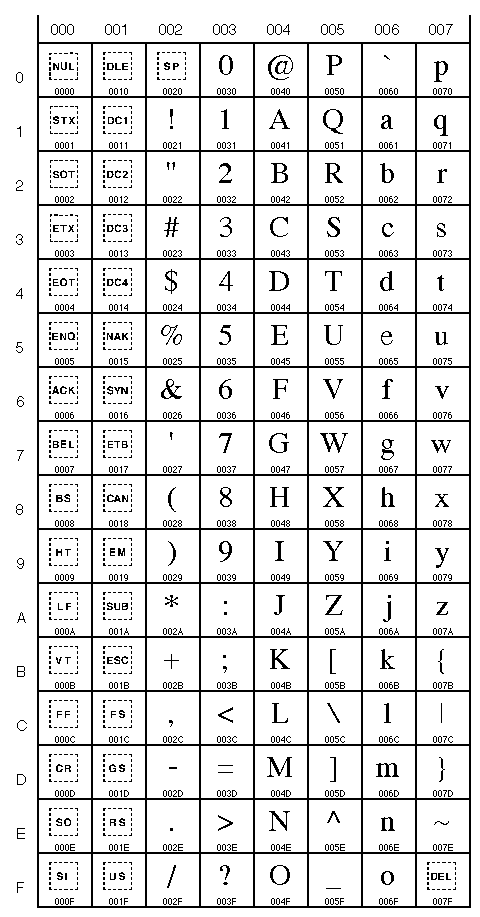
0000 to 007F (0 to 127)
(Latin characters) |
Unicode
table
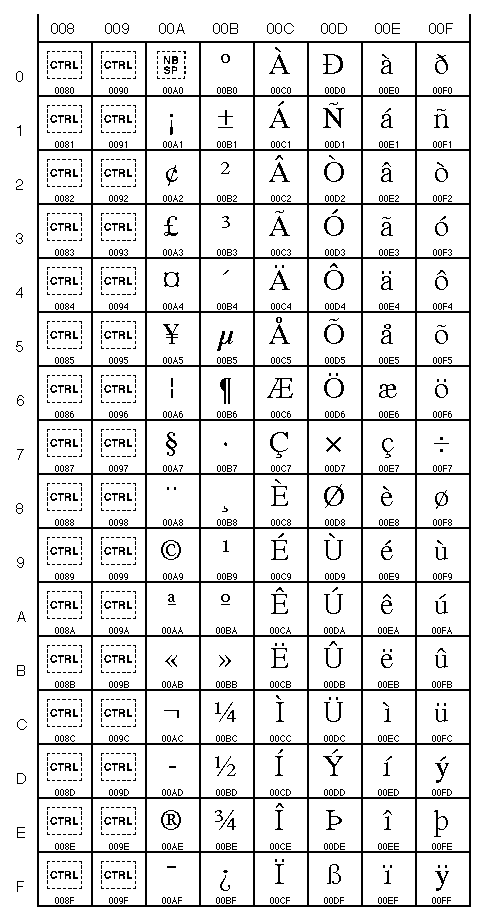
0080 to 00FF (128 to 255)
(Latin characters,
including accented characters) |
Unicode
table
0900 to 097F (2304 to 2431)
(devanagari) |
Unicode
table
1100 to 117F (4352 to 4479)
(hangul jamo) |
So the word "bébé"
(baby in
French) will translate to
these numbers: 98 233 98
233 (or 0062 00E9 0062 00E9 in 16 bits
hexadecimal).
The
encoding
Now we have all those numbers, we have to find a binary
representation for them.
Number →
Bits
ASCII uses the simple mapping: 1 ASCII code (0...127) = 1 byte
(8 or 7 bits). It's ok for ASCII, because ASCII uses only numbers
from 0 to 127. It fits in a byte.
But for Unicode and other charsets, that's a problem: 8 bits are not enough.
These charsets
require other encodings.
Most of them use a multi-byte encoding (a character is represented
by several bytes).
For Unicode,
there are
several encodings. The first one is the raw 16 bits Unicode. 16
bits (2 bytes) per character.
But as most texts only use the lower part of the Unicode table
(codes 0 to 127), that's huge waste of space.
That's why UTF-8
was
invented.
That's brilliant: For codes 0 to 127, simply use 1 byte per
character. Just like ASCII.
If you need special, less common characters (128 to 2047), use two
bytes.
If you need more specific characters (2048 to 65535), use three
bytes.
etc.
Unicode value
(in hexadecimal) |
Bits to output |
| 00000000 to 0000007F |
0xxxxxxx |
| 00000080 to 000007FF |
110xxxxx 10xxxxxx |
| 00000800 to 0000FFFF |
1110xxxx 10xxxxxx
10xxxxxx |
| 00010000 to 001FFFFF |
11110xxx 10xxxxxx
10xxxxxx
10xxxxxx |
| 00200000 to 03FFFFFF |
111110xx 10xxxxxx
10xxxxxx 10xxxxxx
10xxxxxx |
| 04000000 to 7FFFFFFF |
1111110x 10xxxxxx
10xxxxxx 10xxxxxx
10xxxxxx 10xxxxxx |
Thus for most latin texts, this will be as space-savvy as ASCII,
but you have the ability to use any
special Unicode character if you
want.
How's that ?
Let's
sum up all
this
| Symbol |
→ |
Number |
→ |
Bits |
|
charset |
|
encoding |
|
The charset
will tell you
which number to use for each symbol,
the encoding
will tell you
how to encode these numbers into bits.
One simple example is:
| é |
→ |
233 |
→ |
C3 A9 |
|
|
in
Unicode |
|
in UTF-8 |
For example the word "bébé" (baby
in French):
| bébé |
→ |
98 233 98 233 |
→ |
62 C3 A9 62 C3 A9 |
|
|
in
Unicode |
|
in UTF-8 |
If I receive the bits 62 C3 A9 62 C3 A9
without the
knowledge of the encoding
and the charset,
this will
be useless to me.
Clueless programers will display these bits as is:

then will ask "Why am I
getting
those strange characters ?".
You're not clueless, because you've just read this article.
Transmitting a text alone
is useless.
If
you
transmit a text, you must always also tell which
charset/encoding was
used.
That's also why many webpages are broken: They
do
not tell their charset/encoding.
Do you know that in this case all browsers try to guess the charset ?
That's bad.
Every webpage should have its encoding specified in HTTP headers or
in the HTML header itself, such as:
<meta http-equiv="Content-Type" content="text/html;
charset=iso-8859-1">
This is the same for
emails: Any
good email client will indicate which charset/encoding the text is
encoded in.
Hint: Some encodings are specific to some charsets. For example,
UTF-8 is only used for Unicode. So if I receive UTF-8 encoded data,
I know its charset is Unicode.
Python
and
Unicode
Python supports directly Unicode and UTF-8.
Use them as much as
possible.
Your programs will smoothly support international characters.
First, you should always indicate which charset/encoding your
Python source uses, such as:
#!/usr/bin/python
# -*- coding: iso-8859-1 -*-
Next, use Unicode strings in your programs (use the 'u' prefix):
badString = "Bad string !"
bestString = u"Good unicode string."
anotherGoodString = u"Ma vie, mon \u0153uvre."
( \u0153 is the unicode character "œ". (0153 is the code for
"œ"). The "œ" character is in the latin-1 section of
the charts:
http://www.unicode.org/charts/
)
To convert a standard string to Unicode, do:
myUnicodeString =
unicode(mystring)
or
myUnicodeString = mystring.decode('iso-8859-1')
To convert a Unicode string to a specific charset:
myString =
myUnicodeString.encode('iso-8859-1')
The list of charsets/encodings supported by Python are available at
http://docs.python.org/lib/standard-encodings.html
Don't
forget than
when you print, you use the charset of the
console
(stdout). So sometimes printing a Unicode string can fail, because
the string may
contain Unicode characters which are not available in the charset
of your operating system console.
Let me put it again: A
simple
print instruction can fail.
Example, with the french word "œuvre":
>>> a =
u'\u0153uvre'
>>> print a
Traceback (most recent call last):
File "<stdin>", line 1, in ?
File "c:\python24\lib\encodings\cp437.py", line 18, in
encode
return
codecs.charmap_encode(input,errors,encoding_map)
UnicodeEncodeError: 'charmap' codec can't encode character
u'\u0153' in position 0: character maps to <undefined>
Python is telling you that the Unicode character 153 (œ)
has no equivalent in the charset your operating system console
uses.
To see which charset your console supports, you can do:
>>> import sys
>>> print sys.stdout.encoding
cp437
So to make sure you print without error, you can do:
>>> import sys
>>> a = u'\u0153uvre'
>>> print a.encode(sys.stdout.encoding,'replace')
?uvre
>>>
Unicode characters which cannot be displayed by the console will be
converted to '?'.
Special note:
When dealing
with external sources (files, databases, stdint/stdout/stderr, API
such as Windows COM or registry, etc.) be carefull: Some of these
will not communicate in Unicode, but in some special charset. You
should properly convert to and from Unicode accordingly.
For
example, to
write Unicode strings to an UTF-8 encoded file, you can do:
>>> a =
u'\u0153uvre'
>>> file = open('myfile.txt','w')
>>> file.write( a.encode('utf-8') )
>>> file.close()
Reading the same file:
>>> file =
open('myfile.txt','r')
>>> print file.read()
œuvre
>>>
Oops...
you see
there's a problem here. We opened the file but we didn't specify
the encoding when reading. That's why we get this "œ"
garbage (which is UTF-8 codes).
Let's decode the UTF-8:
>>>
file=open('myfile.txt','r')
>>> print repr( file.read().decode('utf-8') )
u'\u0153uvre'
>>>
There, we got it right. That's our "œuvre" word.
Remember
our console does not support
the \u0153 character ? (That's why we used
repr().)
So let's encode the string in a charset supported by our
console:
>>> import sys
>>> file=open('myfile.txt','r')
>>> print
file.read().decode('utf-8').encode(sys.stdout.encoding,'replace')
?uvre
>>>
Yes, this looks cumbersome.
But don't forget we are translating between 3 modes: UTF-8 (the
input file),
Unicode (the Python object) and cp437 (the output console
charset).
| UTF-8 |
→ |
Unicode |
→ |
cp437 |
|
The input file. |
.decode('utf-8')
|
The Python unicode string. |
.encode('cp437') |
The console. |
That's why we have to explicitely
convert between
encodings.
Explicit is better than implicit.
Links:
Iterating
A shorter syntax
When you come from other languages, you are tempted to use these
other languages' constructs.
For example, when iterating over the elements of a table, you would
probably iterate using an index:
countries =
['France','Germany','Belgium','Spain']
for i in range(0,len(countries)):
print countries[i]
or
countries =
['France','Germany','Belgium','Spain']
i = 0
while i<len(countries):
print countries[i]
i = i+1
It's better to use iterators:
countries =
['France','Germany','Belgium','Spain']
for country in countries:
print country
It does the same thing, but:
- You've spared a variable (i).
- The code is more compact.
- It's more readable.
"for country in countries" is almost plain
English.
The same is true for other things, like reading lines from a text
file. So instead for doing:
file = open('file.txt','r')
for line in
file.readlines():
print line
file.close()
Simply do:
file = open('file.txt','r')
for line in file:
print line
file.close()
These kind of constructs can help to keep code shorter and more readable.
Iterating with
multiple items
It's also easy to iterate over multiple items at once.
data = [ ('France',523,'Jean
Dupont'),
('Germany',114,'Wolf Spietzer'),
('Belgium',227,'Serge Ressant')
]
for
(country,nbclients,manager) in
data:
print
manager,'manages',nbclients,'clients
in',country
This also applies to dictionnaries (hashtables). For example, you
could iterate over a dictionnary like this:
data = { 'France':523,
'Germany':114,
'Belgium':227 }
for country in data: # This is the same as for
country
in data.keys()
print 'We have',data[country],'clients
in',country
But it's better to do it this way:
data = { 'France':523,
'Germany':114,
'Belgium':227 }
for (country,nbclients)
in
data.items():
print 'We have',nbclients,'clients
in',country
because you spare a hash for each entry.
Creating
iterators
It's easy to create your own iterators.
For example, let's say we have a clients file:
COUNTRY
NBCLIENTS
France 523
Germany 114
Spain
127
Belgium 227
and we want a class capable of reading this file format. It
must return the country and the number of clients.
We create a clientFileReader
class:
class clientFileReader:
def __init__(self,filename):
self.file=open(filename,'r')
self.file.readline()
# We discard the first line.
def close(self):
self.file.close()
def
__iter__(self):
return self
def
next(self):
line =
self.file.readline()
if not line:
raise StopIteration()
return ( line[:13],
int(line[13:]) )
To create an iterator:
- Create a
__iter__()
method which returns the iterator (which happen to be ourselves
!)
- The iterator must have a
next() method which
returns the next
item.
- The
next() method must raise the StopIteration()
exception when no more
data is available.
It's as simple as this !
Then we can simply use our file reader as:
clientFile =
clientFileReader('file.txt')
for (country,nbclients)
in
clientFile:
print 'We have',nbclients,'clients
in',country
clientFile.close()
See ?
"for (country,nbclients)
in
clientFile:" is a higher level construct which makes the
code much more readable and hides the complexity of the underlying
file format.
This is much better than chopping file lines in the main loop.
Parsing
the
command-line
It's not recommended to try to parse the command-line
(sys.argv) yourself. Parsing the command-line is not
as trivial as
it seems to be.
Python has two good modules dedicated to command-line parsing:
getopt ant optparse.
They do their job very well (They take care of mundane tasks such
as parameters quoting, for example).
optparse is
the new, more
Pythonic and OO module. Yet I often prefer getopt.
We'll see both.
Ok, let's create a program which is supposed to reverses all lines in a text file.
Our program has:
- a mandatory argument:
file,
the file to process.
- an optional parameters with value:
-o to specify an
output file (such as
-o myoutputfile.txt)
- an optional parameter without
value:
-c
to capitalize all letters.
- an optional parameters:
-h
to display program help.
getopt
Let's do it with getopt
first:
import sys
import getopt
if __name__ == "__main__":
opts, args = None, None
try:
opts, args =
getopt.getopt(sys.argv[1:], "hco:",["help",
"capitalize","output="])
except getopt.GetoptError, e:
raise 'Unknown argument
"%s" in command-line.' % e.opt
for option, value in opts:
if option in
('-h','--help'):
print 'You asked for the program help.'
sys.exit(0)
if option in
('-c','--capitalize'):
print "You used the --capitalize option !"
elif option in
('-o','--output'):
print "You used the --output option with value",value
# Make sure we have our mandatory
argument
(file)
if len(args) != 1:
print 'You must specify
one file to process. Use -h for help.'
sys.exit(1)
print "The file to process is",args[0]
# The rest of the code goes here...
Details:
- The
getopt.getopt()
will parse the command-line:
-
sys.argv[1:]
skips the
program name itself (which is sys.argv[0])"hco:"
give the list of
possible options (-h, -c
and
-o). The colon (:)
tells that
-o requires a value.["help",
"capitalize","output="] allows the user to use
the long
options version (--help/--capitalize/--output).
User can even be mix short and long options in the command-line,
such as: reverse --capitalise -o output.txt
myfile.txt
- The
for
loop will check
all options.
-
- It's typically in this loop that you will modify your
program
options according to command-line options.
- The
--help
will display
the help page and exit (sys.exit(0)).
- The
if
len(args)!=1
is
used to make sure our mandatory argument (file)
is
provided. You can choose to allow (or not) several
arguments.
Let's use out program from the command line:
C:\>python reverse.py -c -o
output.txt
myfile.txt
You used the --capitalize option !
You used the --output option with value output.txt
The file to process is myfile.txt
You can also call for help:
C:\>python reverse.py -h
You asked for the program help.
(Of course, you would have to display real usefull program
information here.)
optparse
Let's do the same with optparse:
import sys
import optparse
if __name__ == "__main__":
parser = optparse.OptionParser()
parser.add_option("-c","--capitalize",action="store_true",dest="capitalize")
parser.add_option("-o","--output",action="store",type="string",dest="outputFilename")
(options, args) = parser.parse_args()
if options.capitalize:
print "You used the
--capitalize option !"
if options.outputFilename:
print "You used the
--output option with value",options.outputFilename
# Make sure we have our mandatory
argument
(file)
if len(args) != 1:
print 'You must specify
one file to process. Use -h for help.'
sys.exit(1)
print "The file to process is",args[0]
# The rest of the code goes here...
Not much different, but:
- You first create a parser (
optparse.OptionParser()),
add options
to this parser (parser.add_option(...))
then ask him to
parse the command-line (parser.parse_args()).
-
- Option -c does not take a value. We merely record the
presence
of
-c with action="store_true".
dest="capitalize" will store this
option in the
attribute capitalize of our parser.
- For
-o, we specify a string to store in the outputFilename
attribute of our
parser.
- We later simply access our options through
options.capitalize
and options.outputFilename.
No loop.
args still gives us our file
argument.
Let's try it:
C:\>python reverse2.py -c
-o output.txt myfile.txt
You used the --capitalize option !
You used the --output option with value output.txt
The file to process is myfile.txt
It works. Let's ask for help:
C:\>python reverse2.py -h
usage: reverse2.py [options]
options:
-h,
--help
show this help message and exit
-c, --capitalize
-o OUTPUTFILENAME, --output=OUTPUTFILENAME
But did you notice ?
We didn't code the --help option !
Yet it works !
It's because optparse generates help for you.
You can even add help information in options with the help parameter, such
as:
parser.add_option("-c","--capitalize",action="store_true",dest="capitalize",help="Capitalize
all letters")
parser.add_option("-o","--output",action="store",type="string",dest="outputFilename",help="Write
output to a file")
Which will give:
C:\>python reverse2.py -h
usage: reverse2.py [options]
options:
-h,
--help
show this help message and exit
-c,
--capitalize Capitalize all letters
-o OUTPUTFILENAME, --output=OUTPUTFILENAME
Write output to a
file
Help is automatically generated.
You see that optparse is quite flexible. You can even extend it
with custom actions, customize help pages, etc.
Using
AutoIt from Python
AutoIt
is a
fabulous free scripting language for scripting Windows: you can
click buttons, send keystrokes, wait for Windows, etc.
Although you could do the same in Python using raw Win32 API, it's
a pain. It's much easier to use AutoIt COM interface.
Example: Launch Notepad and send some text.
import win32com.client
autoit = win32com.client.Dispatch("AutoItX3.Control")
autoit.Run("notepad.exe")
autoit.AutoItSetOption("WinTitleMatchMode", 4)
autoit.WinWait("classname=Notepad")
autoit.send("Hello, world.")
(Note that I matched the window by its class
("classname=Notepad") and
not by its title, because the
title is not the
same in the different versions of Windows (english, french, german,
etc.))
Of course, this is just COM calls. Nothing special. But
AutoIt is handy.
The AutoIt COM documentation is C:\Program
Files\AutoIt3\AutoItX\AutoItX.chm
The COM control is C:\Program
Files\AutoIt3\AutoItX\AutoItX3.dll
Don't forget that this COM control must be registered prior
usage (with the command-line:
regsvr32 AutoItX3.dll).
I use the following code to automatically register the COM control
if it's not available:
import os
# Import the Win32 COM client
try:
import win32com.client
except ImportError:
raise ImportError, 'This program
requires the
pywin32 extensions for Python. See
http://starship.python.net/crew/mhammond/win32/'
import pywintypes # to handle COM errors.
# Import AutoIT (first try)
autoit = None
try:
autoit =
win32com.client.Dispatch("AutoItX3.Control")
except pywintypes.com_error:
# If can't instanciate, try to register
COM
control again:
os.system("regsvr32 /s AutoItX3.dll")
# Import AutoIT (second try if necessary)
if not autoit:
try:
autoit =
win32com.client.Dispatch("AutoItX3.Control")
except pywintypes.com_error:
raise ImportError,
"Could not instanciate AutoIT COM module because",e
if not autoit:
print "Could not instanciate AutoIT COM
module."
sys.exit(1)
# Now we have AutoIT, let's start Notepad and write some text:
autoit.Run("notepad.exe")
autoit.AutoItSetOption("WinTitleMatchMode", 4)
autoit.WinWait("classname=Notepad")
autoit.send("Hello, world.")
What's
in a main
If you've spent some time with Python, you must have encountered
this strange Python idiom:
if __name__ == "__main__":
What's that ?
A Python program can be used in (at least) two ways:
- executed directly:
python
mymodule.py
- imported:
import
mymodule
What is under the
if __name__=="__main__"
will only be run if the
module is
run directly.
If you import the module, the code will
not be run.
This has many uses. For example:
- Parse the command-line in the main and call the
methods/functions, so that the module can be used from the command
line.
- Run the unit tests (unittest) in the main, so that the
module
performs a self-test when run.
- Run example code in the main (for example, for a tkinter
widget).
Example:
Parsing the command-line
Let's write a module which extracts all links from a HTML page, and
add a main to this module:
import re
class linkextractor:
def __init__(self,htmlPage):
self.htmlcode =
htmlPage
def getLinks(self):
linksList =
re.findall('<a
href=(.*?)>.*?</a>',self.htmlcode)
links = []
for link in
linksList:
if link.startswith('"'): link=link[1:] # Remove quotes
if link.endswith('"'): link=link[:-1]
links.append(link)
return links
if __name__ ==
"__main__":
import sys,getopt
opts, args =
getopt.getopt(sys.argv[1:],"")
if len(args) != 1:
print "You must specify
a file to process."
sys.exit(1)
print "Linkextractor is processing %s..." %
args[0]
file = open(args[0],"rb")
htmlpage = file.read(500000)
file.close()
le = linkextractor(htmlpage)
print le.getLinks()
- The class
linkextractor
contains our program logic.
- The main
only parses
the command-line, reads the specified file and uses our
linkextractor class to process it.
We can use our class by running it from the command line:
C:\>python linkextractor.py
myPage.html
Linkextractor is processing myPage.html...
[...]
or from another Python program by importing it:
import linkextractor, urllib
htmlSource =
urllib.urlopen("http://sebsauvage.net/index.html").read(200000)
le = linkextractor.linkextractor(htmlSource)
print le.getLinks()
In this case, the main will not run.
Being able to use our class directly from the command-line is very
handy.
Example:
Running
self-tests
You can also write a self-test for this unit:
import re, unittest
class linkextractor:
def __init__(self,htmlPage):
self.htmlcode =
htmlPage
def getLinks(self):
linksList =
re.findall('<a
href=(.*?)>.*?</a>',self.htmlcode)
links = []
for link in
linksList:
if link.startswith('"'): link=link[1:] # Remove quotes
if link.endswith('"'): link=link[:-1]
links.append(link)
return links
class
_TestExtraction(unittest.TestCase):
def testLinksWithQuotes(self):
htmlcode =
"""<html><body>
Welcome to <a
href="http://sebsauvage.net/">sebsauvage.net/</a><br>
How about some <a
href="http://python.org">Python</a>
?</body></html>"""
le =
linkextractor(htmlcode)
links =
le.getLinks()
self.assertEqual(links[0], 'http://sebsauvage.net/',
'First link is %s. It
should be http://sebsauvage.net/ without quotes.' % links[0])
self.assertEqual(links[1], 'http://python.org',
'Second link is %s. It
should be http://python.org without quotes.' % links[1])
if __name__ ==
"__main__":
print "Performing self-tests..."
unittest.main()
You can simply self-test our module by running it:
C:\>python linkextractor.py
Performing self-tests...
.
----------------------------------------------------------------------
Ran 1 test in 0.000s
OK
C:\>
This is very usefull to auto-test (or at least sanity-check) all
your programs/modules/classes/libraries automatically.
(Note that our unittest above is quite lame: It should do a lot
more things. To learn more about the unittest, I highly recommend
to read Dive into Python.)
Mixing both
You can even mix self-tests and command-line parsing in the
main:
- If nothing provided in command-line (or a special
--selftest option is provided), perform
the
self-test.
- Otherwise perform what the user asked in command line.
Disable
all javascript in a html page
If you have a Python program which grabs html pages from the web,
javascript is a real nuisance when you browse these pages
offline.
Here's a simple trick to disable all javascript:
Short version:
html =
html.replace('<script','<noscript')
Better version:
import re
re_noscript = re.compile('<(/?)script',re.IGNORECASE)
html = re_noscript.sub(r'<\1noscript',html)
This will disable all javascript (browsers will simply ignore the
<noscript> tag), and you will
still be able to
have a look in the code if you want.
Multiplying
Python can multiply. It can even multiply strings, tuples or
lists.
>>> 3*'a'
'aaa'
>>> 3*'hello'
'hellohellohello'
>>> 3*('hello')
'hellohellohello'
>>> 3*('hello',)
('hello', 'hello', 'hello')
>>> 3*['hello']
['hello', 'hello', 'hello']
>>> 3*('hello','world')
('hello', 'world', 'hello', 'world', 'hello', 'world')
Notice the difference between ('hello')
which is a single
string and ('hello',) which is
a tuple.
That's why they do not multiply the same.
You can also add:
>>> print
3*'a' + 2*'b'
aaabb
>>> print 3*('a',) + 2*('b',)
('a', 'a', 'a', 'b', 'b')
>>> print 3*['a'] + 2*['b']
['a', 'a', 'a', 'b', 'b']
Creating
and reading .tar.bz2
archives
tar.bz2 archives are usually smaller than .zip or .tar.gz.
Python can natively create and read those archives.
Compressing a directory into a .tar.bz2 archive:
import tarfile
import bz2
archive = tarfile.open('myarchive.tar.bz2','w:bz2')
archive.debug = 1
#
Display the files beeing compressed.
archive.add(r'd:\myfiles') # d:\myfiles contains the
files to compress
archive.close()
Decompressing a .tar.bz2 archive:
import tarfile
import bz2
archive = tarfile.open('myarchive.tar.bz2','r:bz2')
archive.debug = 1 # Display the files beeing
decompressed.
for tarinfo in archive:
archive.extract(tarinfo,
r'd:\mydirectory')
# d:\mydirectory is where I want to uncompress the files.
archive.close()
Enumerating
A simple function to get a numbered enumeration:
enumerate() works on
sequences (string,
list...) and returns a tuple (index,item):
>>> for i in
enumerate(
['abc','def','ghi','jkl'] ):
... print i
...
(0, 'abc')
(1, 'def')
(2, 'ghi')
(3, 'jkl')
>>>
>>> for i in enumerate('hello world'):
... print i
...
(0, 'h')
(1, 'e')
(2, 'l')
(3, 'l')
(4, 'o')
(5, ' ')
(6, 'w')
(7, 'o')
(8, 'r')
(9, 'l')
(10, 'd')
>>>
Zip
that
thing
zip, map and filter are powerful
sequence operators
which can replace list comprehension in some cases.
List comprehension
List comprehension is a syntax to create a list of transformed
elements of a sequence.
For example:
>>> mylist =
(1,3,5,7,9)
>>> print [value*2 for value in mylist]
[2, 6, 10, 14, 18]
This reads almost as plain english: compute value*2 for each value
in my
list.
You can also use conditions to filter the list:
>>> mylist =
(1,3,5,7,9)
>>> print [i*2 for i in mylist if i>4]
[10, 14, 18]
There are other way to compute and transform lists: zip, map and filter.
zip
zip
returns a
list of tuples. Each tuple contains the i-th element of each
sequence (lists, tuples, etc.). Example:
>>> print zip(
['a','b','c'],
[1,2,3] )
[('a', 1), ('b', 2), ('c', 3)]
You can even zip multiple
sequences together:
>>> print zip(
['a','b','c'],
[1,2,3], ['U','V','W'] )
[('a', 1, 'U'), ('b', 2, 'V'), ('c', 3, 'W')]
Strings are sequences too. You can zip them:
>>> print
zip('abcd','1234')
[('a', '1'), ('b', '2'), ('c', '3'), ('d', '4')]
The output list will be as long as the shortest input sequence:
>>> print zip(
[1,2,3,4,5],
['a','b'] )
[(1, 'a'), (2, 'b')]
map
map applies
a function to
each element of a sequence, and returns a list.
Example: Apply the abs() function to each element of a list:
>>> print
map(abs, [-5,7,-12]
)
[5, 7, 12]
which is the equivalent of:
>>> print
[abs(i) for i
in [-5,7,-12]]
[5, 7, 12]
Except that map
is
faster.
Note that you can use your own functions:
>>> def
myfunction(value):
... return value*10+1
...
>>> print map(myfunction, [1,2,3,4] )
[11, 21, 31, 41]
>>>
You can also use a function which takes several argument.
In this case, you
must provide as many lists as arguments.
Example: We use the max() function which
returns the
maximum value of two values. We provide to provide 2 sequences.
>>> print
map(max, [4,5,6], [1,2,9]
)
[4, 5, 9]
This is the equivalent of:
>>> [
max(4,1), max(5,2), max(6,9)
]
[4, 5, 9]
filter
filter does
the same as
map, except that the element is discarded if
the
function returns None (or an equivalent of
None).
(I say 'equivalent' because in Python things like zero or an empty
list are the equivalent of None).
>>> print
filter(abs, [-5,7,0,-12]
)
[-5, 7, -12]
This is the equivalent of:
>>> print [i
for i in [-5,7,0,-12]
if abs(i)]
[-5, 7, -12]
Except that filter
is
faster.
So... map/filter or list comprehension ?
It's usually better to use map/filter, because they're faster. But
not always.
Take the following example:
>>> print
[abs(i+5) for i in
[-5,7,0,-12] if i<5]
[0, 5, 7]
You could express the same thing with filter,
maps and lambda:
>>> map(
lambda x:abs(x+5),
filter(lambda x:x<5 ,[-5,7,0,-12]) )
[0, 5, 7]
The list comprehension is not only easier to read: It's also
surprisingly faster.
Always profile your code to see which method is faster.
There are other sequences operators:
reduce
Reduce is handy to perform cumulative computations (eg. compute
1+2+3+4+5 or 1*2*3*4*5).
>>> def
myfunction(a,b):
... return a*b
...
>>> mylist = [1,2,3,4,5]
>>> print reduce(myfunction, mylist)
120
which is the equivalent of:
>>>print
((((1*2)*3)*4)*5)
120
In fact, you can import the operator from the operator
module:
>>> import
operator
>>> mylist = [1,2,3,4,5]
>>> print reduce(operator.mul, mylist)
120
>>> print reduce(operator.add, mylist)
15
(Reduce hint is taken from http://jaynes.colorado.edu/PythonIdioms.html#operator
)
Conversions
You can convert between lists, tuples, dictionnaries and strings.
Some examples:
>>> mytuple =
(1,2,3)
>>> print list(mytuple)
# Tuple to list
[1, 2, 3]
>>>
>>> mylist = [1,2,3]
#
List to
tuple
>>> print tuple(mylist)
(1, 2, 3)
>>>
>>> mylist2 = [ ('blue',5), ('red',3),
('yellow',7) ]
>>> print dict(mylist2)
# List to dictionnary
{'blue': 5, 'yellow': 7, 'red': 3}
>>>
>>> mystring = 'hello'
>>> print list(mystring)
# String to list
['h', 'e', 'l', 'l', 'o']
>>>
>>> mylist3 = ['w','or','ld']
>>> print ''.join(mylist3)
# List to string
world
>>>
You get the picture.
This is just an example, because all of them are sequences: For
example, you do not need
to convert a string
to a
list for
iterating over
each character !
>>> mystring =
'hello'
>>> for character in list(mystring): # This is BAD. Don't do
this.
... print character
...
h
e
l
l
o
>>> for character in mystring:
# Simply do that !
... print character
...
h
e
l
l
o
>>>
Keep in mind sequence functions require any sequence, not only lists.
Thus it's ok to do:
>>> print
[i+'*' for i in
'Hello']
['H*', 'e*', 'l*', 'l*', 'o*']
or even:
>>> print
max('Hello, world !')
w
(The max() function also accepts sequences.)
because strings are already a sequences. You
do not have
to convert the
string into
a list.
A
Tkinter widgets
which expands in grid
When you lay out widgets in a tkinter application, you use either
the pack()
or
the grid()
geometry manager.
Grid is - in
my opinion - a
far more powerful and flexible geometry manager than Pack.
(By the way, never ever
mix .pack() and .grid(), or you'll have nasty surprises.)
The (expand=1,fill=BOTH) option of pack()
manager is nice to have the widgets automatically expand when the
window is resized, but you can do the same with the Grid
manager.
Instructions:
- When using
grid(), specify sticky (usually
'NSEW')
- Then use
grid_columnconfigure()
and grid_rowconfigure()
to set the weights
(usually 1).
Example: A simple Window with a red and a blue canvas. The two
canvas automatically resize to use all the available space in the
window.
import Tkinter
class myApplication:
def __init__(self,root):
self.root = root
self.initialisation()
def initialisation(self):
canvas1 =
Tkinter.Canvas(self.root)
canvas1.config(background="red")
canvas1.grid(row=0,column=0,sticky='NSEW')
canvas2 =
Tkinter.Canvas(self.root)
canvas2.config(background="blue")
canvas2.grid(row=1,column=0,sticky='NSEW')
self.root.grid_columnconfigure(0,weight=1)
self.root.grid_rowconfigure(0,weight=1)
self.root.grid_rowconfigure(1,weight=1)
def main():
root = Tkinter.Tk()
root.title('My application')
app = myApplication(root)
root.mainloop()
if __name__ == "__main__":
main()
If you comment the lines containing grid_columnconfigure
and grid_rowconfigure,
you will see that
the canvas do not expand.
You can even play with the weights to share the available space
between widgets, eg:
self.root.grid_rowconfigure(0,weight=1)
self.root.grid_rowconfigure(1,weight=2)
Convert a string date
to a datetime
object
Let's say we want to convert a string date (eg."2006-05-18
19:35:00") into a datetime object.
>>> import
datetime,time
>>> stringDate = "2006-05-18 19:35:00"
>>> dt = datetime.datetime.fromtimestamp(time.mktime(time.strptime(stringDate,"%Y-%m-%d
%H:%M:%S")))
>>> print dt
2006-05-18 19:35:00
>>> print type(dt)
<type 'datetime.datetime'>
>>>
time.strptime() converts the
string to a
struct_time tuple.time.mktime() converts this tuple
into seconds
(elasped since epoch, C-style).datetime.fromtimestamp() converts
the seconds to a
Python datetime object.
Yes, this is convoluted.
Compute
the difference
between two dates, in seconds
>>> import
datetime,time
>>> def dateDiffInSeconds(date1, date2):
... timedelta = date2 - date1
... return
timedelta.days*24*3600 +
timedelta.seconds
...
>>> date1 = datetime.datetime(2006,02,17,15,30,00)
>>> date2 = datetime.datetime(2006,05,18,11,01,00)
>>> print dateDiffInSeconds(date1,date2)
7759860
>>>
Managed
attributes, read-only
attributes
Sometimes, you want to have a greater control over attributes
access in your object.
You can do this:
- Create a private attribute (
self.__x)
- Create accessor functions to this attribute
(
getx,setx,delx)
- Create a
property() and assign it
these
accessors.
Example:
class myclass(object):
def __init__(self):
self.__x = None
def
getx(self):
return
self.__x
def setx(self, value): self.__x = value
def
delx(self):
del
self.__x
x = property(getx, setx, delx, "I'm the
'x'
property.")
a = myclass()
a.x = 5 # Set
print a.x # Get
del a.x # Del
This way, you can control access in the getx/setx/delx
methods.
For example, you can prevent a property from being written or
deleted:
class myclass(object):
def __init__(self):
self.__x = None
def
getx(self):
return
self.__x
def setx(self, value): raise AttributeError,'Property x
is
read-only.'
def
delx(self):
raise
AttributeError,'Property x cannot be
deleted.'
x = property(getx, setx, delx, "I'm the
'x'
property.")
a = myclass()
a.x = 5 #
This line will fail
print a.x
del a.x
If you run this program, you will get:
Traceback (most recent call last):
File "example.py", line 11, in ?
a.x =
5 # This line will
fail
File "example.py", line 6, in setx
def setx(self, value): raise
AttributeError,'Property x is read-only.'
AttributeError: Property x is read-only.
First
day of the
month
>>> import
datetime
>>> def firstDayOfMonth(dt):
... return
(dt+datetime.timedelta(days=-dt.day+1)).replace(hour=0,minute=0,second=0,microsecond=0)
...
>>> print firstDayOfMonth(
datetime.datetime(2006,05,13)
)
2006-05-01 00:00:00
>>>
This function takes a datetime object as input (dt)
and returns the first day of the month at midnight (12:00:00
AM).
Fetch,
read and parse a
RSS 2.0 feed in 6 lines
Dumbed-down version. Easy.
This program gets the RSS 2.0 feed from sebsauvage.net,
parses it and displays
all titles.
import urllib,
sys, xml.dom.minidom
address = 'http://www.sebsauvage.net/rss/updates.xml'
document = xml.dom.minidom.parse(urllib.urlopen(address))
for item in document.getElementsByTagName('item'):
title =
item.getElementsByTagName('title')[0].firstChild.data
print "Title:",
title.encode('latin-1','replace')
Get
a login from
BugMeNot
BugMeNot.com provides
logins/passwords for sites which have a compulsory
registration.
Here's a simple function which returns a login/password for a given
domain or URL.
import re,urllib2,urlparse
def getLoginPassword(url):
''' Returns a login/password for a given
domain using BugMeNot.
Input: url (string) -- the URL or domain to get a login for.
Output: a tuple (login,password)
Will return (None,None) if no login is available.
Examples:
print getLoginPassword("http://www.nytimes.com/auth/login")
('goaway147', 'goaway')
print getLoginPassword("imdb.com")
('bobshit@mailinator.com', 'diedie')
'''
if not
url.lower().startswith('http://'): url =
"http://"+url
domain =
urlparse.urlsplit(url)[1].split(':')[0]
address =
'http://www.bugmenot.com/view/%s?utm_source=extension&utm_medium=firefox'
% domain
request = urllib2.Request(address, None,
{'User-Agent':'Mozilla/5.0'})
page =
urllib2.urlopen(request).read(50000)
re_loginpwd =
re.compile('<th>Username.*?<td>(.+?)</td>.*?<th>Password.*?<td>(.+?)</td>',re.IGNORECASE|re.DOTALL)
match = re_loginpwd.search(page)
if match:
return match.groups()
else:
return (None,None)
Example:
>>> print
getLoginPassword("http://www.nytimes.com/auth/login")
('goaway147', 'goaway')
>>> print getLoginPassword("imdb.com")
('bobshit@mailinator.com', 'diedie')
Note: It looks like BugMeNot sometimes serves an error page, or
tells you that no login are available although they are. You are
warned.
Logging
into
a site and handling session cookies
Here's an example of logging into a website and using the session
cookie for further requests (We log into imdb.com).
import cookielib, urllib, urllib2
login = 'ismellbacon123@yahoo.com'
password = 'login'
# Enable cookie support
for
urllib2
cookiejar = cookielib.CookieJar()
urlOpener =
urllib2.build_opener(urllib2.HTTPCookieProcessor(cookiejar))
# Send login/password to
the site
and get the session cookie
values = {'login':login, 'password':password }
data = urllib.urlencode(values)
request = urllib2.Request("http://www.imdb.com/register/login",
data)
url = urlOpener.open(request) # Our cookiejar automatically
receives the cookies
page = url.read(500000)
# Make sure we are logged
in by
checking the presence of the cookie "id".
# (which is the cookie containing the session identifier.)
if not 'id' in [cookie.name for cookie in cookiejar]:
raise ValueError, "Login failed with
login=%s,
password=%s" % (login,password)
print "We are logged in !"
# Make another request
with our
session cookie
# (Our urlOpener automatically uses cookies from our cookiejar)
url = urlOpener.open('http://imdb.com/find?s=all&q=grave')
page = url.read(200000)
This requires Python 2.4 or later (because of the cookielib module).
Note that you can have cookie support for older versions of Python
with third-party modules (ClientCookie
for example).
Login form parameters, URL and session cookie name vary from site
to site. Use Firefox to see them all:
- For forms: Menu "Tools" > "Page info" >
"Forms" tab.
- For cookies: Menu "Tools" > "Options" >
"Privacy" tab
> "Cookies" tab > "View cookies" button.
Most of the time, you do not need to logout.
Searching
on
Google
This class searchs Google and returns a list of links (URL). It
does not use the Google API.
It automatically browses the different result pages, and gathers
only the URLs.
import re,urllib,urllib2
class GoogleHarvester:
re_links = re.compile(r'<a
class=l
href="(.+?)"',re.IGNORECASE|re.DOTALL)
def __init__(self):
pass
def harvest(self,terms):
'''Searchs Google for
these terms. Returns only the links (URL).
Input:
terms (string) -- one or several words to search.
Output: A list of urls (strings).
Duplicates links are removed, links are sorted.
Example: print GoogleHarvester().harvest('monthy pythons')
'''
print "Google: Searching
for '%s'" % terms
links = {}
currentPage = 0
while True:
print "Google: Querying page %d (%d links found so far)" %
(currentPage/100+1, len(links))
address =
"http://www.google.com/search?q=%s&num=100&hl=en&start=%d"
% (urllib.quote_plus(terms),currentPage)
request = urllib2.Request(address, None, {'User-Agent':'Mozilla/4.0
(compatible; MSIE 6.0; Windows NT 5.1)'} )
urlfile = urllib2.urlopen(request)
page = urlfile.read(200000)
urlfile.close()
for url in GoogleHarvester.re_links.findall(page):
links[url] = 0
if
"</div>Next</a></table></div><center>"
in page: # Is there a "Next" link for next page of results ?
currentPage += 100 # Yes, go to next page of results.
else:
break # No, break out of the while True loop.
print "Google: Found %d
links." % len(links)
return
sorted(links.keys())
# Example: Search for
"monthy
pythons"
links = GoogleHarvester().harvest('monthy pythons')
open("links.txt","w+b").write("\n".join(links))
Links found will be written in the file links.txt.
Please note that the internet evolves all the time, and by the time
you are reading this program, Google may have changed. Therefore
you may have to adapt this class.
Building
a basic GUI
application step-by-step in Python with Tkinter and wxPython
Here is a full tutorial on how create a GUI. You will learn to
build a GUI step-by-step.
Tkinter and wxPython are compared. Each and every object, method
and parameter are explained.
http://sebsauvage.net/python/gui/index.html
Flatten
nested lists and
tuples
Here's a function which flattens nested lists and tuples.
(This function is shamelessly heavily inspired from
http://www.reportlab.co.uk/cgi-bin/viewcvs.cgi/public/reportlab/trunk/reportlab/lib/utils.py)
import types
def flatten(L):
''' Flattens nested lists and tuples in L. '''
def _flatten(L,a):
for x in L:
if type(x) in (types.ListType,types.TupleType): _flatten(x,a)
else: a(x)
R = []
_flatten(L,R.append)
return R
Example:
>>> a = [ 5,
'foo', (-52.5, 'bar'),
('foo',['bar','bar']), [1,2,[3,4,(5,6)]],('foo',['bar']) ]
>>> print flatten(a)
[5, 'foo', -52.5, 'bar', 'foo', 'bar', 'bar', 1, 2, 3, 4, 5, 6,
'foo', 'bar']
>>>
Efficiently
iterating over large tables in databases
When reading rows from a SQL database, you have several choices
with the DB-Api:
fetchone()
: Read
one row
at time.fetchmany()
: Read
several
rows at time.fetchall()
: Read
all
rows at time.
Which one do you think is better ?
At first sight, fetchall() seems to be a good
idea.
Let's see: I have a 140 Mb database in SQLite3 format with a big
table. Maybe reading all rows at once is faster ?
con
=
sqlite.connect('mydatabase.db3'); cur = con.cursor()
cur.execute('select discid,body from
discussion_body;')
for row in
cur.fetchall():
pass
As soon as we run the program, it eats up 140 Mb of memory.
Oops !
Why ? Because fetchall() loads all the rows in memory at
once.
We don't want our programs to be a memory hog. So using
fetchall() is barely recommenced.
There are better ways of doing this. So let's read row by row
with fetchone():
con
=
sqlite.connect('mydatabase.db3'); cur = con.cursor()
cur.execute('select discid,body from
discussion_body;')
for row in
iter(cur.fetchone, None):
pass
fetchone() returns one row at time, and
returns
None when no more rows are
available: In order to
use fetchone() in a for
loop, we have to
create an iterator which will call fetchone()
repeatedly for reach row, until the None
value is
returned.
It works very well and does not eat memory. But it's
sub-optimal: Most databases use 4 Kb data packets or so. Most of
the time, it would be more efficient to read several rows at once.
That's why we use fetchmany():
con
=
sqlite.connect('mydatabase.db3'); cur = con.cursor()
cur.execute('select discid,body from
discussion_body;')
for row in
iter(cur.fetchmany, []):
pass
fetchmany() returns a list of row at time (of
variable
size), and returns an empty list when no more rows as
available: In order to use fetchmany()
in a
for loop, we have to create an iterator which
will
call fetchmany() repeatedly, until an
emptylist
[] is returned.
(Note that we did not specify how many rows we wanted at once:
It's better to let the
database
backend choose the best threshold.)
fetchmany() is the optimal way of fetching
rows: It
does not use a lot of memory like fetchall()
and it's
usually faster than fetchone().
Note that in our example we used SQLite3, which it not
network-based. The difference between
fetchone/fetchmany is even greater with
network-based
databases (mySQL, Oracle, Microsoft SQL Server...), because those
databases also have a certain granularity for network packets.
A
range of floats
Python has a range() function which produces
a range
of integers.
>>> print
range(2,15,3)
[2, 5, 8, 11, 14]
But it does not support floats.
Here's one which does:
def floatrange(start,stop,steps):
''' Computes a range of floating value.
Input:
start (float) : Start value.
end (float) : End value
steps (integer): Number of values
Output:
A list of floats
Example:
>>> print floatrange(0.25, 1.3, 5)
[0.25, 0.51249999999999996, 0.77500000000000002,
1.0375000000000001, 1.3]
'''
return
[start+float(i)*(stop-start)/(float(steps)-1) for i in
range(steps)]
Example:
>>> print
floatrange(0.25, 1.3,
5)
[0.25, 0.51249999999999996, 0.77500000000000002,
1.0375000000000001, 1.3]
Converting
RGB to HSL and back
HSL
(Hue/Saturation/Lightness) is a more human-accessible
representation of colors, but most computer work in RGB mode.
- Hue:
The tint (red,
blue, pink, green...)
- Saturation: Does
the color falls toward grey or toward the pure color itself ? (It's
like the "color" setting of your TV). 0=grey 1=the
pure
color itself.
- Lightness:
0=black,
0.5=the pure color itself, 1=white
Here are two functions which convert between the two colorspaces.
Examples are provided in docstrings.
def HSL_to_RGB(h,s,l):
''' Converts HSL colorspace
(Hue/Saturation/Value) to RGB colorspace.
Formula from
http://www.easyrgb.com/math.php?MATH=M19#text19
Input:
h (float) : Hue (0...1, but can be above or below
(This is a rotation around the chromatic circle))
s (float) : Saturation (0...1) (0=toward
grey,
1=pure color)
l (float) : Lightness (0...1)
(0=black
0.5=pure color 1=white)
Ouput:
(r,g,b) (integers 0...255) : Corresponding RGB values
Examples:
>>> print HSL_to_RGB(0.7,0.7,0.6)
(110, 82, 224)
>>> r,g,b = HSL_to_RGB(0.7,0.7,0.6)
>>> print g
82
'''
def Hue_2_RGB( v1, v2, vH ):
while vH<0.0: vH +=
1.0
while vH>1.0: vH -=
1.0
if 6*vH < 1.0 :
return v1 + (v2-v1)*6.0*vH
if 2*vH < 1.0 :
return v2
if 3*vH < 2.0 :
return v1 + (v2-v1)*((2.0/3.0)-vH)*6.0
return v1
if not (0 <= s <=1): raise
ValueError,"s
(saturation) parameter must be between 0 and 1."
if not (0 <= l <=1): raise
ValueError,"l
(lightness) parameter must be between 0 and 1."
r,b,g = (l*255,)*3
if s!=0.0:
if
l<0.5 : var_2 = l * (
1.0 + s )
else :
var_2 = ( l + s ) - ( s * l )
var_1 =
2.0 * l - var_2
r = 255 *
Hue_2_RGB( var_1,
var_2, h + ( 1.0 / 3.0 ) )
g = 255 *
Hue_2_RGB( var_1,
var_2, h )
b = 255 *
Hue_2_RGB( var_1,
var_2, h - ( 1.0 / 3.0 ) )
return
(int(round(r)),int(round(g)),int(round(b)))
def RGB_to_HSL(r,g,b):
''' Converts RGB colorspace to HSL
(Hue/Saturation/Value) colorspace.
Formula from
http://www.easyrgb.com/math.php?MATH=M18#text18
Input:
(r,g,b) (integers 0...255) : RGB values
Ouput:
(h,s,l) (floats 0...1): corresponding HSL values
Example:
>>> print RGB_to_HSL(110,82,224)
(0.69953051643192476, 0.69607843137254899, 0.59999999999999998)
>>> h,s,l = RGB_to_HSL(110,82,224)
>>> print s
0.696078431373
'''
if not (0 <= r <=255):
raise ValueError,"r
(red) parameter must be between 0 and 255."
if not (0 <= g <=255):
raise ValueError,"g
(green) parameter must be between 0 and 255."
if not (0 <= b <=255):
raise ValueError,"b
(blue) parameter must be between 0 and 255."
var_R = r/255.0
var_G = g/255.0
var_B = b/255.0
var_Min = min( var_R, var_G, var_B
) # Min. value of RGB
var_Max = max( var_R, var_G, var_B
) # Max. value of RGB
del_Max = var_Max -
var_Min
# Delta RGB value
l = ( var_Max + var_Min ) / 2.0
h = 0.0
s = 0.0
if del_Max!=0.0:
if
l<0.5: s = del_Max / (
var_Max + var_Min )
else:
s = del_Max / ( 2.0 - var_Max - var_Min )
del_R = (
( ( var_Max - var_R
) / 6.0 ) + ( del_Max / 2.0 ) ) / del_Max
del_G = (
( ( var_Max - var_G
) / 6.0 ) + ( del_Max / 2.0 ) ) / del_Max
del_B = (
( ( var_Max - var_B
) / 6.0 ) + ( del_Max / 2.0 ) ) / del_Max
if var_R ==
var_Max : h = del_B - del_G
elif var_G == var_Max :
h = ( 1.0 / 3.0 ) + del_R - del_B
elif var_B == var_Max :
h = ( 2.0 / 3.0 ) + del_G - del_R
while h
< 0.0: h += 1.0
while h
> 1.0: h -= 1.0
return (h,s,l)
Note that h
(hue) is not
constrained to 0...1 because it's an angle around the chromatic
circle: You can walk several times around the circle :-)
Edit:
Doh ! Of
course, I forgot that
Python comes with batteries included: The colorsys
module already does that. Repeat after me: RTFM RTFM RTFM.
Generate a
palette of
rainbow-like pastel colors
This function generates a palette of rainbow-like pastel
colors.
Note that it uses the HSL_to_RGB()
and the floatrange()
functions.
def generatePastelColors(n):
""" Return different pastel colours.
Input:
n (integer) : The number of colors to return
Output:
A list of colors in HTML notation (eg.['#cce0ff', '#ffcccc',
'#ccffe0', '#f5ccff', '#f5ffcc'])
Example:
>>> print generatePastelColors((5)
['#cce0ff', '#f5ccff', '#ffcccc', '#f5ffcc', '#ccffe0']
"""
if n==0:
return []
# To generate colors, we use the HSL
colorspace
(see http://en.wikipedia.org/wiki/HSL_color_space)
start_hue = 0.6 #
0=red 1/3=0.333=green
2/3=0.666=blue
saturation = 1.0
lightness = 0.9
# We take points around the chromatic
circle
(hue):
# (Note: we generate n+1 colors, then
drop the
last one ([:-1]) because it equals the first one (hue 0 = hue
1))
return ['#%02x%02x%02x' %
HSL_to_RGB(hue,saturation,lightness) for hue in
floatrange(start_hue,start_hue+1,n+1)][:-1]
Columns
to
rows (and vice-versa)
You have a table. You want the columns to become rows, and rows to
become columns.
That's easy:
table = [ ('Person',
'Disks',
'Books'),
('Zoe' ,
12,
24 ),
('John' ,
17,
5 ),
('Julien',
3, 11 )
]
print zip(*table)
You get:
[ ('Person', 'Zoe', 'John',
'Julien'),
('Disks' , 12, 17,
3 ),
('Books' , 24,
5,
11 )
]
I told you it was easy :-)
How
do I create an
abstract class in Python ?
mmm... Python does not know this "abstract class" concept. We do
not really need it.
Python uses "duck typing": If it quacks
like a duck,
then it's a duck.
I don't care what abstract "duck" class it is derived from as
long as it quacks when I call the .quack()
method.
If it has a .quack() method, then that's good
enough
for me.
After all, an abstract class is only a contract. Java or C++
compilers enforce syntaxically this contract. Python does not. It
lets the grown-up Python programers respect the contract (Well...
we're supposed to know what we're doing, aren't we ?).
One simple example is to redirect standard error to a file:
import sys
class myLogger:
def __init__(self):
pass
def write(self,data):
file =
open("mylog.txt","a")
file.write(data)
file.close()
sys.stderr = myLogger() # Use my class to output errors
instead of the console.
print 5/0 # This will trigger an exception
This will create the file mylog.txt which
contains the
error instead of displaying the error on the console.
See ?
I don't need the class myLogger to derive
from an
abstract "IOstream" or "Console" class thing: It just needs to have
the .write() method. That's all I need.
And it works !
But you do can
enforce
some checks this way:
class myAbstractClass:
def __init__(self):
if self.__class__
is myAbstractClass:
raise NotImplementedError,"Class
%s
does not implement __init__(self)" % self.__class__
def method1(self):
raise
NotImplementedError,"Class %s does not implement
method1(self)" % self.__class__
If you try to call a method which is not implemented in a derived
class, you will get an explicit "NotImplementedError"
exception.
class myClass(myAbstractClass):
def __init__(self):
pass
m = myClass()
m.method1()
Traceback (most recent call last):
File "myprogram.py", line 19, in <module>
m.method1()
File "myprogram.py", line 10, in method1
raise NotImplementedError,"Class %s does
not
implement method1(self)" % self.__class__
NotImplementedError:
Class
__main__.myClass does not implement method1(self)
matplotlib,
PIL,
transparent PNG/GIF and conversions between ARGB to RGBA
Yes, that's a lot of things in a single snippet, but if you work
with matplotlib
or PIL,
you will probably need it some day:
- Generate a matplotlib figure without using pylab
- Get a transparent bitmap from a matplotlib figure
- Get a PIL Image object from a matplotlib Figure
- Convert ARGB to RGBA
- Save a transparent GIF and PNG
#
Import
matplotlib and PIL
import matplotlib, matplotlib.backends.backend_agg
import Image
# Generate a figure with
matplotlib
figure = matplotlib.figure.Figure(frameon=False)
plot = figure.add_subplot(111)
plot.plot([1,3,2,5,6])
# If you want, you can use figure.set_dpi() to change the bitmap
resolution
# or use figure.set_size_inches() to resize it.
# Example:
#figure.set_dpi(150)
# See also the SciPy matplotlib cookbook:
http://www.scipy.org/Cookbook/Matplotlib/
# and especially this example:
#
http://www.scipy.org/Cookbook/Matplotlib/AdjustingImageSize?action=AttachFile&do=get&target=MPL_size_test.py
# Ask matplotlib to
render the
figure to a bitmap using the Agg backend
canvas =
matplotlib.backends.backend_agg.FigureCanvasAgg(figure)
canvas.draw()
# Get the buffer from the
bitmap
stringImage = canvas.tostring_argb()
# Convert the buffer from
ARGB to
RGBA:
tempBuffer = [None]*len(stringImage) # Create an empty array of the
same size as stringImage
tempBuffer[0::4] = stringImage[1::4]
tempBuffer[1::4] = stringImage[2::4]
tempBuffer[2::4] = stringImage[3::4]
tempBuffer[3::4] = stringImage[0::4]
stringImage = ''.join(tempBuffer)
# Convert the RGBA buffer
to a PIL
Image
l,b,w,h = canvas.figure.bbox.get_bounds()
im = Image.fromstring("RGBA", (int(w),int(h)), stringImage)
# Display the image with
PIL
im.show()
# Save it as a
transparent PNG
file
im.save('mychart.png')
# Want a transparent GIF
?
You can do it too
im = im.convert('RGB').convert("P", dither=Image.NONE,
palette=Image.ADAPTIVE)
# PIL ADAPTIVE palette uses the first color index (0) for the white
(RGB=255,255,255),
# so we use color index 0 as the transparent color.
im.info["transparency"] = 0
im.save('mychart.gif',transparency=im.info["transparency"])
You can test both images with a non-white background:
<html><body
bgcolor="#31F2F2"><img
src="mychart.png"><img
src="mychart.gif"></body></html>
The PNG always look better, especially on darker backgrounds.
Caveat: All
browsers (IE7,
Firefox, Opera, K-Meleon, Safari, Camino,
Konqueror...) render transparents PNG correctly...
Except Internet Explorer
5.5 and
6 ! <grin>
IE 5.5 and 6 do not
support
transparent PNG. Period. So you may have to favor the .GIF format.
Your mileage may vary.
Note 1: The ARGB to RGBA conversion could probably be made faster
using numpy, but I haven't investigated.
Note 2: There is a trick
to have
transparent PNGs in IE 5.5/6. Yes you read it correctly. It works
and is a perfectly valid HTML markup.
Automatically
crop an
image
Here's a function which removes the useless white space around an
image. It's especially handy with matplotlib to remove the
extraneous whitespace around charts.
This function can handle both transparent and non-transparent
images.
- In case of transparent images, the image transparency is
used
to determine what to crop.
- Otherwise, this function will try to find the most popular
color on the edges of the image and consider this color
"whitespace". (You can override this color with the
backgroundColor parameter)
It requires the PIL
library.
import Image, ImageChops
def autoCrop(image,backgroundColor=None):
'''Intelligent automatic image cropping.
This
functions removes the
usless "white" space around an image.
If the
image has an alpha
(tranparency) channel, it will be used
to choose
what to crop.
Otherwise,
this function will
try to find the most popular color
on the
edges of the image and
consider this color "whitespace".
(You can
override this color
with the backgroundColor parameter)
Input:
image (a PIL Image object): The image to crop.
backgroundColor (3 integers tuple): eg. (0,0,255)
The color to consider "background to crop".
If the image is transparent, this parameters will be ignored.
If the image is not transparent and this parameter is not
provided, it will be automatically calculated.
Output:
a PIL Image object : The cropped image.
'''
def mostPopularEdgeColor(image):
''' Compute who's the
most popular color on the edges of an image.
(left,right,top,bottom)
Input:
image: a PIL Image object
Ouput:
The most popular color (A tuple of integers (R,G,B))
'''
im = image
if im.mode != 'RGB':
im = image.convert("RGB")
# Get pixels from the
edges of the image:
width,height =
im.size
left =
im.crop((0,1,1,height-1))
right =
im.crop((width-1,1,width,height-1))
top =
im.crop((0,0,width,1))
bottom =
im.crop((0,height-1,width,height))
pixels = left.tostring()
+ right.tostring() + top.tostring() + bottom.tostring()
# Compute who's the most
popular RGB triplet
counts = {}
for i in
range(0,len(pixels),3):
RGB = pixels[i]+pixels[i+1]+pixels[i+2]
if RGB in counts:
counts[RGB] += 1
else:
counts[RGB] = 1
# Get the colour which
is the most
popular:
mostPopularColor =
sorted([(count,rgba) for (rgba,count) in
counts.items()],reverse=True)[0][1]
return
ord(mostPopularColor[0]),ord(mostPopularColor[1]),ord(mostPopularColor[2])
bbox = None
# If the image has an alpha
(tranparency) layer,
we use it to crop the image.
# Otherwise, we look at the pixels
around the
image (top, left, bottom and right)
# and use the most used color as the
color to
crop.
# --- For transparent images
-----------------------------------------------
if 'A' in image.getbands(): # If the
image has a
transparency layer, use it.
# This works for all
modes which have transparency layer
bbox =
image.split()[list(image.getbands()).index('A')].getbbox()
# --- For non-transparent images
-------------------------------------------
elif image.mode=='RGB':
if not
backgroundColor:
backgroundColor = mostPopularEdgeColor(image)
# Crop a non-transparent
image.
# .getbbox() always
crops the black color.
# So we need to
substract the "background" color from our image.
bg = Image.new("RGB",
image.size, backgroundColor)
diff =
ImageChops.difference(image, bg) # Substract background color
from image
bbox =
diff.getbbox() # Try to find the real bounding box of the
image.
else:
raise
NotImplementedError, "Sorry, this function is not implemented yet
for images in mode '%s'." % image.mode
if bbox:
image =
image.crop(bbox)
return image
Examples:
To do:
- Crop non-transparent image in other modes
(palette, black
& white).
Counting
the different
words
A quick way to enumerate the different species in a population (in
our case: the different words used and their count):
This is the kind of thing you could use - for example - to see how
many files have the same size, same name or same checksum.
text = "ga bu zo meuh ga zo bu meuh
meuh ga
zo zo meuh zo bu zo"
items = text.split(' ')
counters = {}
for item in items:
if item in counters:
counters[item] += 1
else:
counters[item] = 1
print "Count of different
word:"
print counters
print "Most popular
word:"
print sorted([(counter,word) for word,counter
in counters.items()],reverse=True)[0][1]
This displays:
Count of different word:
{'bu': 3, 'zo': 6, 'meuh': 4, 'ga': 3}
Most popular word:
zo
You may change the for loop this way:
for item in items:
try:
counters[item] += 1
except
KeyError:
counters[item] = 1
This works too, but that's slighly slower than "if item in counters"
because
generating an exception involves some overhead (creating an
KeyError exception object).
Quick
code coverage
How can you be sure you have tested all parts of your program ?
This is an important question, especially if you write unit tests.
Python has an undocumented module capable of performing code
coverage: Trace.
Instead of running your program with:
main()
Do:
import trace,sys
tracer = trace.Trace(ignoredirs=[sys.prefix,
sys.exec_prefix],trace=0,count=1,outfile=r'./coverage_dir/counts')
tracer.run('main()')
r = tracer.results()
r.write_results(show_missing=True,
coverdir=r'./coverage_dir')
This will create a coverage_dir subdirectory
containing .cover files: These files will
tell you how
many times each line has been executed, and which lines were
not executed.
To convert the .cover files to nice HTML
pages, you
can use the following program:
#!/usr/bin/python
# -*- coding: iso-8859-1 -*-
import os,glob,cgi
def cover2html(directory=''):
''' Converts .cover files generated by
the
Python Trace module to .html files.
You can generate cover
files this way:
import trace,sys
tracer = trace.Trace(ignoredirs=[sys.prefix,
sys.exec_prefix],trace=0,count=1,outfile=r'./coverage_dir/counts')
tracer.run('main()')
r = tracer.results()
r.write_results(show_missing=True, coverdir=r'./coverage_dir')
Input:
directory (string): The directory where the *.cover files are
located.
Output:
None
The html files are written in the input directory.
Example:
cover2html('coverage_dir')
'''
# Note: This function is a quick
& dirty
hack.
# Write the CSS file:
file = open("style.css","w+")
file.write('''
body {
font-family:"Trebuchet
MS",Verdana,"DejaVuSans","VeraSans",Arial,Helvetica,sans-serif;
font-size: 10pt;
background-color: white;
}
.noncovered { background-color:#ffcaca; }
.covered { }
td,th { padding-left:5px;
padding-right:5px;
border: 1px solid
#ccc;
font-family:"DejaVu Sans
Mono","Bitstream Vera Sans Mono",monospace;
font-size: 8pt;
}
th { font-weight:bold; background-color:#eee;}
table { border-collapse: collapse; }
''')
file.close()
indexHtml = "" # Index html
table.
# Convert each .cover file to html.
for filename in
glob.glob(os.path.join(directory,'*.cover')):
print "Processing %s" %
filename
filein =
open(filename,'r')
htmlTable =
'<table><thead><th>Run
count</th><th>Line
n°</th><th>Code</th></thead><tbody>'
linecounter = 0
noncoveredLineCounter =
0
for line in filein:
linecounter += 1
runcount = ''
if line[5] == ':': runcount = cgi.escape(line[:5].strip())
cssClass = 'covered'
if line.startswith('>>>>>>'):
noncoveredLineCounter += 1
cssClass="noncovered"
runcount = '►'
htmlTable += '<tr class="%s"><td
align="right">%s</td><td
align="right">%d</td><td
nowrap>%s</td></tr>\n' %
(cssClass,runcount,linecounter,cgi.escape(line[7:].rstrip()).replace('
',' '))
filein.close()
htmlTable +=
'</tbody></table>'
sourceFilename =
filename[:-6]+'.py'
coveragePercent =
int(100*float(linecounter-noncoveredLineCounter)/float(linecounter))
html =
'''<html><!-- Generated by cover2html.py -
http://sebsauvage.net --><head><link
rel="stylesheet"
href="style.css"
type="text/css"></head><body>
<b>File:</b> %s<br>
<b>Coverage:</b> %d%% (
<span
class="noncovered"> ► </span>
= Code not executed. )<br>
<br>
''' %
(cgi.escape(sourceFilename),coveragePercent) + htmlTable +
'</body></html>'
fileout =
open(filename+'.html','w+')
fileout.write(html)
fileout.close()
indexHtml +=
'<tr><td><a
href="%s">%s</a></td><td>%d%%</td></tr>\n'
% (filename+'.html',cgi.escape(sourceFilename),coveragePercent)
# Then write the index:
print "Writing index.html"
file = open('index.html','w+')
file.write('''<html><head><link
rel="stylesheet" href="style.css"
type="text/css"></head>
<body><table><thead><th>File</th><th>Coverage</th></thead><tbody>%s</tbody></table></body></html>'''
% indexHtml)
file.close()
print "Done."
cover2html()
Run this program in the directory containing your
.cover files, then simply open
index.html.
Here's a test file and
its output.
Note that Python's Trace module is not
perfect: For
example it will flag "not executed" imports, functions definition
and some other lines, although they were executed.
There are other code coverage modules:
Trapping
exceptions to the console under wxPython
When an exception occurs in your wxPython
program, it is displayed in
a wxPython window. Sometimes, you just want everything to be logged
to the console (stderr), like any other Python program. Here's how
to do it:
import sys
STDERR = sys.stderr # Keep stderr because wxPyhon will
redirect it.
import wx
[...your
wxPython program goes here...]
if __name__ == "__main__":
import traceback,sys
try:
app = MyWxApplication()
# Start you wxPython application here.
app.MainLoop()
except:
traceback.print_exc(file=STDERR)
Of course, you can use this trick to log
everything to a file if you prefer.
Get
a
random "interesting" image from Flickr
Note: Flickr
website has changed, and the following code will not work. It is kept
as an example.
Here's a simple function which returns a random image flagged
"interesting" in Flickr.com:
#!/usr/bin/python
# -*- coding: iso-8859-1 -*-
import datetime,random,urllib2,re
def getInterestingFlickrImage(filename=None):
''' Returns a random "interesting" image
from
Flickr.com.
The image is saved in
current directory.
In case the image is not
valid (eg.photo not available, etc.)
the image is not saved
and None is returned.
Input:
filename (string): An optional filename.
If filename is not provided, a name will be automatically
provided.
None
Output:
(string) Name of the file.
None if the image is not available.
'''
#
Get a random
"interesting" page from Flickr:
print 'Getting a random "interesting"
Flickr
page...'
# Choose a random date between the
beginning of
flickr and yesterday.
yesterday = datetime.datetime.now() -
datetime.timedelta(days=1)
flickrStart = datetime.datetime(2004,7,1)
nbOfDays = (yesterday-flickrStart).days
randomDay = flickrStart +
datetime.timedelta(days=random.randint(0,nbOfDays))
# Get a random page for this date.
url =
'http://flickr.com/explore/interesting/%s/page%d/' %
(randomDay.strftime('%Y/%m/%d'),random.randint(1,20))
urlfile = urllib2.urlopen(url)
html = urlfile.read(500000)
urlfile.close()
#
Extract
images URLs from this page
re_imageurl =
re.compile('src="(http://farm\d+.static.flickr.com/\d+/\d+_\w+_m.jpg)"',re.IGNORECASE|re.DOTALL)
urls = re_imageurl.findall(html)
if len(urls)==0:
raise
ValueError,"Oops... could not find images URL in this page. Either
Flickr has problem, or the website has changed."
urls = [url.replace('_m.jpg','_o.jpg')
for url
in urls]
#
Choose a
random image
url = random.choice(urls)
#
Download the
image:
print 'Downloading %s' % url
filein = urllib2.urlopen(url)
try:
image =
filein.read(5000000)
except MemoryError: # I sometimes get
this
exception. Why ?
return None
filein.close()
#
Check
it.
if len(image)==0:
return None #
Sometimes flickr returns nothing.
if len(image)==5000000:
return None #
Image too big. Discard
it.
if image.startswith('GIF89a'):
return None # "This
image is not available" image.
#
Save to
disk.
if not filename:
filename =
url[url.rindex('/')+1:]
fileout = open(filename,'w+b')
fileout.write(image)
fileout.close()
return filename
print getInterestingFlickrImage()
WARNING: These images may be NSFW.
Why
is Python a good
beginner language ?
Python is a good language to learn programming, because you can
start to write in scripting mode (variables, assigment...), then
learn new concepts (procedural programming, conditional branching,
loops, objet orientation...).
Let me put an example: Start with the simple program:
print "Hello, world !"
Then learn about variables and inputs/outputs:
a = input()
b = a + 2
print b
Then learn about procedural programming (loops, conditional
branching...):
a = input()
b = a + 2
if b > 10:
print "More than 10 !"
Then learn structured programming (functions, return values,
recursivity...):
def square(value):
return value*value
print square(5)
Then learn object orientation:
class myClass:
def __init__(self,value):
self.value = value
def bark(self):
print "Woof woof !"
myObject = myClass(5)
print myObject.value
myObject.bark()
etc.
This is a great way to learn programming one concept at time.
And more importantly, experimenting
using the Python console
(as Python does not require explicit compilation).
To illustrate Python fitness in programing courses, I will quote
a Slashdot
reader:
Java:
class myfirstjavaprog
{
public static void main ( String args[] )
{
System.out.println ( "Hello
World!" )
;
}
}
Student asks:
What is a class?, What is that funny looking bracket?, What is
public?, What is static?, What is void for?, What is main?, What
are the parenthesis for?, What is a String?, What is args?, How
come there are funny square brackets?, What is system?, What does
the dot do?, What is out?, What is println?, Why are there quotes
there?, What does the semicolon do?, How come it's all indented
like that?.
C:
#include <stdio.h>
main()
{
printf ( "Hello, World!\n" ) ;
}
Student asks:
What is #include?, What are the greater than and less than signs
doing there?, What is stdio.h?, What is main? What are the
parenthesis for?, What is the funny bracket for?, What is printf?,
Why is hello world in quotes?, What is the backslash-N doing at the
end?, What is the semicolon for?
Python:
print "Hello World"
Student asks:
What is print?, Why is hello world in quotes?
Get the picture?
Why Python is not
a good beginner language.
Yes, there are some drawbacks. Those who start with Python may not
be aware of these concepts:
- Memory
allocation
problems (malloc/free and try/except/finally blocks). More
generally, unexperienced Python programers may not be aware of
ressources allocation issues (as the Python garbage collector takes
care of most problems (file handles, network connections,
etc.)).
- Pointers and
low-level
operations. Python only manipulates references and
objects,
which is higher-level programming. Python programers may have
hard times with pointers and arrays in C or C++. (Do you like
sizeof() ?)
- Specific API.
Python
comes with batteries included: It has the same API on all platforms
(Windows, Linux, etc.). Other languages have their own API (Java),
or a plateform-specific API (C/C++). Programers coming from Python
will probably have to learn plateform specificities (which is
mostly hidden in Python, eg. os.path.join())
- Static typing.
Python
programers will have to cope with mandatory variable and type
declaration, casting and eventually templates in statically-typed
languages (C++, Java, C#...) in order to acheive the same things
they did naturally in Python.
- Compilation.
Compilation is not an issue in itself, but it adds a burden.
- Well, after learning Python, other languages will look like
pain in the ass to the Python developper. This can lead to
demotivation.
Reading
LDIF files
LDIF files contain information exported from LDAP servers.
Although they seem easy to read, I strongly
advise you not
to implement your own reader. You'd
better use a proven LDIF class.
For example, you can use the LDIF class provided in http://python-ldap.sourceforge.net.
This module provides a nifty LDAP client, but if you need just to
read LDIF files, take only ldif.py.
Here's a usage example (we display ID, firstname and lastname of
the persons declared in the LDIF file):
#!/usr/bin/python
# -*- coding: iso-8859-1 -*-
import ldif # ldif module from
http://python-ldap.sourceforge.net
class testParser(ldif.LDIFParser):
def
__init__(self,input_file,ignored_attr_types=None,max_entries=0,process_url_schemes=None,line_sep='\n'
):
ldif.LDIFParser.__init__(self,input_file,ignored_attr_types,max_entries,process_url_schemes,line_sep)
def handle(self,dn,entry):
if 'person' in
entry['objectclass']:
print "Identifier = ",entry['uid'][0]
print "FirstName = ",entry.get('givenname',[''])[0]
print "LastName = ",entry.get('sn',[''])[0]
print
f = open('myfile.ldif','r')
ldif_parser = testParser(f)
ldif_parser.parse()
Capture the
output of a program
It's easy to capture the output of a command-line
program.
For example, under Windows, we will get the number of bytes
received by the workstation by picking up the "Bytes received"
line displayed by this
command: net statistics
workstation
#!/usr/bin/python
import subprocess
myprocess =
subprocess.Popen(['net','statistics','workstation'],stdout=subprocess.PIPE)
(sout,serr) = myprocess.communicate()
for line in sout.split('\n'):
if line.strip().startswith('Bytes
received'):
print "This workstation
received %s bytes." % line.strip().split(' ')[-1]
Note that the subprocess module also allows you to send data to program
input.
Thus you can communicate with the command-line program like if
it was a user typing (read program output, then react by sending
characters, etc.)
Sometime, you'll want to get the return code of the program. You have
to wait for the end of the program to get its return value:
#!/usr/bin/python
import subprocess
myprocess =
subprocess.Popen(['net','statistics','workstation'],stdout=subprocess.PIPE)
(sout,serr) = myprocess.communicate()
for line in sout.split('\n'):
if line.strip().startswith('Bytes
received'):
print "This workstation
received %s bytes." % line.strip().split(' ')[-1]
myprocess.wait()
# We wait for process to finish
print myprocess.returncode
# then we get its returncode.
Writing
your own webserver
A webserver is relatively easy to understand:
- The client (browser) connects to the webserver and sends it
HTTP GET or POST request (including path, cookies, etc.)
- The server parses the incoming request (path (eg.
/some/file),
cookies, etc.) and responds with a HTTP code (404 for "not found",
200 for "ok", etc.) and sends the content itself (html page,
image...)
Browser
(HTTP Client) |
GET
/path/hello.html HTTP/1.1

Host: www.myserver.com |
Server
(HTTP Server) |
 |
| |
HTTP/1.1
200 OK

Content-Type: text/html
<html><body>Hello,
world
!</body></html>
|
 |
You can take the entire control of this process and write your
own webserver in Python.
Here is a simple webserver which say "Hello, world !"
on
http://localhost:8088/
#!/usr/bin/python
import BaseHTTPServer
class MyHandler(BaseHTTPServer.BaseHTTPRequestHandler):
def do_GET(self):
self.send_response(200)
self.send_header('Content-type','text/html')
self.end_headers()
self.wfile.write('<html><body>Hello, world
!</body></html>')
return
print "Listening on port 8088..."
server = BaseHTTPServer.HTTPServer(('', 8088), MyHandler)
server.serve_forever()
- We create a class which will handle HTTP requests arriving
on
the port (MyHandler).
- We only handles GET requests (do_GET).
- We respond with HTTP code 200, which means "everything is
ok."
(self.send_response(200)).
- We tell the browser that we're about to send HTML data
(self.send_header('Content-type','text/html')).
- Then we sends the HTML itself (self.wfile.write(...))
That's easy.
From there, you can extend the server:
- by responding with specific HTTP error codes if something
goes
wrong (404 for "Not found", 400 for "Invalid request", 401 for "No
authorized", 500 for "Internal server error", etc.)
- by serving different html depending on the requested path
(self.path).
- by serving files from disk or pages (or images !) generated
on
the fly.
- by sending html data (text/html), plain text (text/plain),
JPEG
images (image/jpeg), PNG files (image/png), etc.
- by handling cookies (from self.headers)
- by handling POST requests (for forms and file uploads)
- etc.
Possibilities are endless.
But there are some reasons why you should not try to write
your own
webserver:
- You webserver can only server one request at time.
For high-traffic
websites, you will need to either fork, use threads or use
asynchronous sockets. There are plenty of webserver which are
already highly optimized for speed and will be much faster than
what you are writing.
- Webservers provide a great flexility with configuration
files.
You don'y have to code everything (virtual paths, virtual hosts,
MIME handling, password protection, etc.). That's a great
timesaver.
- SECURITY !
Writing your
own webserver can be tricky (path parsing, etc.). There are plenty
of existing webserver developped with security in mind and which
take care of these issues.
- There are already plenty of ways to incorporate
Python
code in an existing webserver (Apache module, CGI, Fast-CGI,
etc.).
While writing your own webserver can be fun, think twice before
putting this into production.
SOAP clients
I have to use a SOAP webservice.
(Yeah... I know SOAP is a mess, and I'd better not touch that, but
I have no choice.)
So, it's 4th septembre 2007, let's see the state of SOAP clients in
Python:
- First try: SOAPy. Huu...
last updated
April 26, 2001
? Try to run
it. Oops... it is based on
xmllib
which is
deprecated
in Python. No
luck !
Next one:
-
SOAP.py: Last updated in 2005 ? I fetch
SOAPpy-0.12.0.zip,
unzip, run "
python setup.py install":
SyntaxError: from __future__ imports must occur at the
beginning of the file.
WTF ?
By the way, SOAP.py depends on pyXML... which is not maintained
since late 2004 and is
not available for Python 2.5 !
What am I supposed to do with this ?
Ok, let's try another one:
- ZSI seems
to be the current
reference. Download the egg, install...
Visual Studio 2003 was not found on this system.
WTF
??!
Am I supposed to buy
an
expensive
and outdated
IDE to use this Python SOAP
library ?
Out of question !
- Maybe 4Suite ? Seems pretty
good.
Mmmm... no. The developers seem to have
ditched SOAP support alltogether.
So what am I left with ?
I'm disapointed by the sorry state of SOAP clients in Python.
Java and .Net have decent implementations, Python has none (At
least not without buying VisualStudio on Windows).
After some googling, I finally found a SOAP client
implementation on the excellent effbot
page: elementsoap.
It does not understand WSDL, but that's not a big deal, and it's
good enough for me.
Although the documentation is sparse,
it's very
easy to use and works well. Example:
# $Id: testquote.py 2924 2006-11-19
22:24:22Z fredrik $
# delayed stock quote demo (www.xmethods.com)
from elementsoap.ElementSOAP import *
class QuoteService(SoapService):
url = "http://66.28.98.121:9090/soap"
# Put webservice URL
here.
def getQuote(self, symbol):
action =
"urn:xmethods-delayed-quotes#getQuote"
request =
SoapRequest("{urn:xmethods-delayed-quotes}getQuote")
# Create the
SOAP
request
SoapElement(request,
"symbol", "string", symbol)
#
Add
parameters
response =
self.call(action, request)
# Call webservice
return
float(response.findtext("Result"))
# Parse the
answer and return it
q = QuoteService()
print "MSFT", q.getQuote("MSFT")
print "LNUX", q.getQuote("LNUX")
elementSoap is a good example of good low-tech : A simple library,
in pure Python, which only uses the standard Python modules (no
dependency on fancy XML processing suite).
No bell and whistles, but it does
the job.
elementSoap properly handles SOAP exceptions by raising
elementsoap.ElementSOAP.SoapFault.
Archive
your
whole GMail box
Gmail is neat, but what happens if you account disappears ?
(Shit happens... and Google gives no warranty.)
Better safe than sorry: This baby can archive your whole GMail box
in a single standard mbox file which can be easily stored and
imported into any email client.
It's easy: Run it, enter login and password, wait, and you
have
a yourusername.mbox
file.
Note: You must
have
activated IMAP in your GMail account settings.
#!/usr/bin/python
# -*- coding: iso-8859-1 -*-
""" GMail archiver 1.1
This program will download and archive all you emails from GMail.
Simply enter your login and password, and all your emails will
be downloaded from GMail and stored in a standard mbox file.
This inclues inbox, archived and sent mails, whatever label you applied.
Spam is not downloaded.
This mbox files can later on be opened with almost any email client
(eg. Evolution).
Author:
Sébastien SAUVAGE - sebsauvage at
sebsauvage dot net
Webmaster for http://sebsauvage.net/
License:
This program is distributed under the
OSI-certified zlib/libpnglicense .
http://www.opensource.org/licenses/zlib-license.php
This software is provided 'as-is',
without any express or implied warranty.
In no event will the authors be held
liable for any damages arising from
the use of this software.
Permission is granted to anyone to use
this software for any purpose,
including commercial applications, and
to alter it and redistribute it freely,
subject to the following restrictions:
1. The origin of this software must not be misrepresented; you must not
claim that you wrote the original software. If you use this software
in a product, an acknowledgment in the product documentation would be
appreciated but is not required.
2. Altered source versions must be plainly marked as such, and must not
be misrepresented as being the original software.
3. This notice may not be removed or altered from any source
distribution.
Requirements:
- a GMail account with IMAP enabled in
settings.
- GMail settings in english
- Python 2.5
"""
import imaplib,getpass,os
print "GMail archiver 1.0"
user = raw_input("Enter your GMail username:")
pwd = getpass.getpass("Enter your password: ")
m = imaplib.IMAP4_SSL("imap.gmail.com")
m.login(user,pwd)
m.select("[Gmail]/All Mail")
resp, items = m.search(None, "ALL")
items = items[0].split()
print "Found %d emails." % len(items)
count = len(items)
for emailid in items:
print "Downloading email %s (%d
remaining)" % (emailid,count)
resp, data = m.fetch(emailid, "(RFC822)")
email_body = data[0][1]
# We duplicate the From: line to the
beginning of the email because mbox format requires it.
from_line = "from:unknown@unknown"
try:
from_line = [line for line in
email_body[:16384].split('\n') if
line.lower().startswith('from:')][0].strip()
except IndexError:
print
" 'from:' unreadable."
email_body = "From %s\n%s" %
(from_line[5:].strip(),email_body)
file = open("%s.mbox"%user,"a")
file.write(email_body)
file.write("\n")
file.close()
count -= 1
print "All done."
Note that depending on your language, the folder name will change. For
example, if you use the french version, change "[Gmail]/All
Mail" to "[Gmail]/Tous les messages".
Performing
HTTP POST requests
When using urllib or urllib2 to send HTTP requests, it default
sends HTTP GET
requests. Sometime, you need to POST,
either because the remote form does not support GET, or you want to
send a file, or you do not want the request parameters to appear in
proxy logs or browser history.
Here's how to do it:
#!/usr/bin/python
import urllib,urllib2
url = 'http://www.commentcamarche.net/search/search.php3'
parameters = {'Mot' : 'Gimp'}
data = urllib.urlencode(parameters) # Use urllib to encode the
parameters
request = urllib2.Request(url, data)
response = urllib2.urlopen(request) # This request is sent in HTTP
POST
page = response.read(200000)
This is equivalent to the GET request: http://www.commentcamarche.net/search/search.php3?Mot=Gimp
Note that some forms accept both GET and POST, but not all. For
example, you cannot search on Google with HTTP POST requests (Google
will reject your request).
Read
a file with line numbers
Sometime when you read a file, you want to have also the line number
you are working on. That's easy to do:
file = open('file.txt','r')
for (num,value) in enumerate(file):
print "line number",num,"is:",value
file.close()
Which outputs:
line number 0 is: Hello, world.
line number 1 is: I'm a simple text file.
line number 2 is: Read me !
This is very handy - for example - when importing a file and signaling
which line is erroneous.
Filter
all but
authorized characters in a string
mmm... maybe there's a better way to do this:
>>> mystring =
"hello @{} world.||ç^§ <badscript> &£µ**~~~"
>>> filtered = ''.join([c for c
in mystring if c in 'abcdefghijklmnopqrstuvwxyz0123456789_-.
'])
>>> print filtered
hello world. badscript
Writing
your own webserver (using web.py)
Writing your own webserver
can be fun, but it's tedious. web.py
is a very nice
minimalist web framework which simplifies the whole thing.
Here is a no-brainer example:
#!/usr/bin/python
import web
URLS = ( '/sayHelloTo/(\w+)','myfunction' )
class myfunction:
def GET(self,name):
print "Hello, %s !" % name
web.run(URLS, globals())
/sayHelloTo/(\w+)
is a regular expression. All URLs arriving on the server matching this
pattern will call myfunction.
Then myfunction will handle the GET request and return a response.
Let's test it: http://localhost:8080/sayHelloTo/Homer
We got it ! We wrote a page capable of handling
requests with parameters in 7 lines of code. Nice.
You can define as many URL mappings as you want. It's also easy to move
the URLs in your server without touching whole subdirectories. And your
webserver uses nice human-readable URLs :-)
web.py also has features to handle html templates, database access and
so on.
XML-RPC:
Simple remote method call
Let's call a method:
>>> print
myobject.sayHello("Homer")
Hello, Homer !
We know the method sayHello() is executed on
the same
computer. How about a calling the sayHello()
method of another
computer ?
It's possible: It's client/server
technology. There are several ways to do that:
- Pure sockets
(which is a pain in the ass because you have to deal with message
encoding/formatting and low-level transmission problem (end-of-message))
- Webservices/SOAP (which is a pain in the ass because of its
horrendous
complexity)
XML-RPC
is simple and does the job. Let's see:
>>> import
xmlrpclib
>>> server =
xmlrpclib.ServerProxy("http://localhost:8888")
>>> print server.sayHello("Homer")
Hello, Homer !
You see ? Sheer simplicity. You just declare the server, then call the
method as usual.
The sayHello() method is executed on the
server localhost:8888 (which can be another
computer). The xmlrpclib library takes care of the low-level details.
Let's see the corresponding server:
import SimpleXMLRPCServer
class MyClass: # (1)
def sayHello(self, name):
return u"Hello, %s !" % name
server_object = MyClass()
server = SimpleXMLRPCServer.SimpleXMLRPCServer(("localhost", 8888))
# (2)
server.register_instance(server_object) # (3)
print "Listening on port 8888"
server.serve_forever()
- You define a class with all its methods (
MyClass)
- You create a XML-RPC server on a given IP/port (
SimpleXMLRPCServer)
- You register your objet on this server (
register_instance)
On the low-level side, XML-RPC basically converts you method
calls in XML and sends them in a HTTP request.
There are a few gotchas:
- Performance:
In our example, the server can only serve one request at once. For
better performance, you should either use multi-threading,
asynchronous
sockets, forking...
- Performance
(2):
Keep in mind that objets that you pass back and forth between client
and server are transmitted on the network. Don't send large datasets.
Or think about zlib/base64-encoding
them.
- Security:
In our example, anyone can call your webservice. You should implement
access control (for example, using HMAC
and a shared secret).
- Security (2):
Objects are transmitted in clear text. Anyone can sniff the network and
grab your data. You should use HTTPS or use an encryption scheme.
- Text encoding:
Although Python handles UTF-8 nicely, most XML-RPC services can only
handle ASCII. You sometimes will have to use UTF-7 (Luckly, Python
knows how to "talk" UTF-7).
Source: IBM
DeveloperWorks: XML-RPC for Python.
Signing
data
In our previous webservice,
anyone can call the server. That's bad.
We can sign the data to make sure:
- that only authorized
programs will be able to call the webservice.
- that data
was not tampered
during transport.
HMAC is a standardized method for signing data. It takes data and a key, and produces a signature.
Example:
>>> import hmac
>>> print hmac.new("mykey","Hello world
!").hexdigest()
d157e0d7f137c9ffc8d65473e038ee86
d157e0d7f137c9ffc8d65473e038ee86
is the signature of the data "Hello world !" with
the key "mykey".
A different message or a different key will produce a different
signature.
- It's impossible to produce the correct signature for the
data without the correct key.
- The slighest modification in the message will produce a
different signature too.
Let's try it in our client/server example.
Our client has a secret shared with the server: It's the key
("mysecret")
The client signs the data and sends the signature and the data to the
server.
#
The client (signs the data)
import xmlrpclib,hmac,hashlib
key = "mysecret"
server = xmlrpclib.ServerProxy("http://localhost:8888")
name = "Homer"
signature =
hmac.new(key,name).hexdigest()
print server.sayHello(signature,name)
Our server receives the signature and the data (name),
and checks if the signature is correct.
#
The server (verifies the signature)
import SimpleXMLRPCServer,hmac,hashlib
key = "mysecret"
class MyClass:
def sayHello(self, signature, name):
if hmac.new(key,name).hexdigest()
!= signature:
return "Wrong signature ! You're a hacker !"
else:
return u"Hello, %s !" % name
server_object = MyClass()
server = SimpleXMLRPCServer.SimpleXMLRPCServer(("localhost",
8888)) # (2)
server.register_instance(server_object) # (3)
print "Listening on port 8888"
server.serve_forever()
Let's use our client:
c:>python client.py
Hello, Homer !
The server has accepted
our signature.
On the server side, a wrong signature means that the message
was tampered or that the key used was invalid. Let's try both:
Hacker with a wrong key
Now, I'm a hacker, but I don't have the key. I try yo sign with a wrong
key:
# The client
import xmlrpclib,hmac,hashlib
key =
"idontknowthekey"
# I don't know
the correct key. I try anyway !
server = xmlrpclib.ServerProxy("http://localhost:8888")
name = "Homer"
signature = hmac.new(key,name).hexdigest()
print server.sayHello(signature,name)
We call the server:
c:>python client.py
Wrong signature ! You're a hacker !
The server rejected us because we used the wrong key, which cannot
generate a correct signature.
Hacker tampered the message
I'm a hacker and I don't like Homer. I prefer Superman.
I don't know the key. I only have the original message and the
signature sent by the client.
I try to alter the message and send it to the server with the
same signature:
# The client
import xmlrpclib,hmac,hashlib
server = xmlrpclib.ServerProxy("http://localhost:8888")
signature =
"f927a5f8638f9dc3eaf0804f857e6b34" # I sniffed the signature
of "Homer" from the network.
name
= "Superman"
#
I changed "Homer" to "Superman".
print server.sayHello(signature,name)
We call the server:
c:>python client.py
Wrong signature ! You're a hacker !
The server detected that the message was modified and rejected us.
Conclusion, facts and hints
- Trying to call the server when you don't have the correct
key is pointless. You will never be able to generate the correct
signature.
- It's impossible to deduce the key from a message and its
signature. This would required hundreds of thousands of years of
computer time.
- Note that when the server rejects a client, it
cannot distinguishing between a wrong key and tampered data.
- HMAC can use different algorithms (MD5, SHA1, SHA256...).
By default, Python HMAC uses MD5. You can use other ones, example:
hmac.new(key,name,hashlib.sha256)
Just don't forget to import hashlib.
- You can sign several fields at once by concatenating them.
Example:
>>> import
hmac,hashlib
>>> key = "mysecret"
>>> data = ["Homer","Simpson", 42]
>>> data_to_sign = "###".join(str(i) for i in data)
>>> signature =
hmac.new(key,data_to_sign).hexdigest()
>>> print data_to_sign, signature
Homer###Simpson###42 23a5346b8993d01c99fa263fc836743b
You will just have to perform the same concatenation on the server
side.
- HMAC will not
protect you against:
- Replay:
A hacker can pickup the message sent by the client, and replay it as-is
on the server: The server will accept the message. Protection: You can
protect against this by inserting a counter in the message, or
a date/time, etc.
- Eavesdropping:
A hacker can see the request and the response. Protection: You can
encrypt the message (SSL, AES, etc.)
- DOS (Denial
of service): A hacker can send a large amount of requests
to the server, which may become unresponsive for legitimate clients.
Protection:
Use a firewall to filter IPs, or limit the number of
requests per second (netfilter/iptable can do that).
HMAC is a great and simple way to ensure data authenticity and
integrity. It's fast to compute and super-resistant.
Week
of the year
Get the week of the year (week starts on Monday):
>>> import
datetime
>>> print
datetime.datetime(2006,9,4).isocalendar()[1]
36
Stripping
HTML tags
When grabbing HTML from the web, you sometimes just want the text, not
the HTML tags. Here's a function to remove HTML tags:
def stripTags(s):
''' Strips HTML tags.
Taken from
http://aspn.activestate.com/ASPN/Cookbook/Python/Recipe/440481
'''
intag = [False]
def chk(c):
if intag[0]:
intag[0] = (c != '>')
return False
elif c == '<':
intag[0] = True
return False
return True
return ''.join(c for c in s if chk(c))
Example:
>>> print
stripTags('<div style="border:1px solid
black;"><p>Hello, <span
style="font-weight:bold;">world</span>
!</p></div>')
Hello, world !
You may then want to decode HTML entites:
Decode
HTML entities to Unicode characters
When grabbing HTML from the web, when you have stripped HTML tags, it's
always a pain to convert HTML
entities such as é or é
to simple characters.
Here's a function which does exactly that, and
outputs a Unicode string:
import re,htmlentitydefs
def htmlentitydecode(s):
# First convert alpha entities (such as
é)
# (Inspired from
http://mail.python.org/pipermail/python-list/2007-June/443813.html)
def entity2char(m):
entity = m.group(1)
if entity in htmlentitydefs.name2codepoint:
return unichr(htmlentitydefs.name2codepoint[entity])
return u" " # Unknown entity: We replace with a space.
t = re.sub(u'&(%s);' %
u'|'.join(htmlentitydefs.name2codepoint), entity2char, s)
# Then convert numerical entities (such
as é)
t = re.sub(u'&#(\d+);', lambda
x: unichr(int(x.group(1))), t)
# Then convert hexa entities (such as
é)
return re.sub(u'&#x(\w+);',
lambda x: unichr(int(x.group(1),16)), t)
Let's try it:
>>> print
htmlentitydecode(u"Hello world ! é
é é")
Hello world ! é é é
So if you just want to extract the text from a webpage, you can do:
>>> import
urllib2
>>> html =
urllib2.urlopen("http://sebsauvage.net/index.html").read(200000)
>>> text
= htmlentitydecode(stripTags(html))
Ready for indexing !
Maybe you'll want to strip accented characters before ? Ok:
Stripping
accented characters
Stripping accents ? That's easy... when you know how (as
seen
on the french Python wiki):
>>> import
unicodedata
>>> mystring = u"éèêàùçÇ"
>>>
print unicodedata.normalize('NFKD',mystring).encode('ascii','ignore')
eeeaucC
That's handy - for example - when indexing or comparing strings.
A
dictionnary-like object for LARGE datasets
Python dictionnaries are very efficient objects for fast data
access. But when data is too large to fit in memory, you're in trouble.
Here's a dictionnary-like object which uses a SQLite database and
behaves like a dictionnary object:
- You can work on datasets which to not fit in memory. Size
is not limited by memory, but by disk. Can hold up to several
tera-bytes of data (thanks to SQLite).
- Behaves like a dictionnary (can be used in place of a
dictionnary object in most cases.)
- Data persists between program runs.
- ACID (data integrity): Storage file integrity is assured.
No half-written data. It's really hard to mess up data.
- Efficient: You do not have to re-write a whole 500 Gb file
when changing only one item. Only the relevant parts of the file are
changed.
- You can mix several key types (you can do
d["foo"]=bar and d[7]=5468)
(You can't to this with a standard dictionnary.)
- You
can share this dictionnary with other languages and systems (SQLite
databases are portable, and the SQlite library is available on a wide
range of systems/languages, from mainframes to PDA/iPhone, from Python
to Java/C++/C#/perl...)
#!/usr/bin/python
# -*- coding: iso-8859-1 -*-
import os,os.path,UserDict
from sqlite3 import dbapi2 as sqlite
class dbdict(UserDict.DictMixin):
''' dbdict, a dictionnary-like object
for large datasets (several Tera-bytes) '''
def __init__(self,dictName):
self.db_filename = "dbdict_%s.sqlite" % dictName
if not os.path.isfile(self.db_filename):
self.con = sqlite.connect(self.db_filename)
self.con.execute("create table data (key PRIMARY KEY,value)")
else:
self.con = sqlite.connect(self.db_filename)
def __getitem__(self, key):
row = self.con.execute("select value from data where
key=?",(key,)).fetchone()
if not row: raise KeyError
return row[0]
def __setitem__(self, key, item):
if self.con.execute("select key from data where
key=?",(key,)).fetchone():
self.con.execute("update data set value=? where key=?",(item,key))
else:
self.con.execute("insert into data (key,value) values (?,?)",(key,
item))
self.con.commit()
def __delitem__(self, key):
if self.con.execute("select key from data where
key=?",(key,)).fetchone():
self.con.execute("delete from data where key=?",(key,))
self.con.commit()
else:
raise KeyError
def keys(self):
return [row[0] for row in self.con.execute("select key from
data").fetchall()]
Use it like a standard dictionnary, except that you give it a name
(eg."mydummydict"):
d = dbdict("mydummydict")
d["foo"] = "bar"
# At this point, foo and bar are *written* to disk.
d["John"] = "doh!"
d["pi"] = 3.999
d["pi"] = 3.14159
You can access your dictionnary later on:
d = dbdict("mydummydict")
del d["foo"]
if "John" in d:
print "John is in there !"
print d.items()
You can open dbdict_mydummydict.sqlite with
any other SQLite-compatible tool.
Some possible improvements:
- You
can't directly store Python objects. Only numbers, strings and binary
data. Objects need to be serialized first in order to be stored.
- Database path is current directory. It could be passed as a
parameter.
keys() could be improve to use
less memory through the use of an iterator or yield.- We do not currently handle database connection closing. The
file stays open until the object is destroyed.
Renaming
.ogg files according to tags
If you have properly-tagged .OGG files (artist, album...) but with
wrong filenames (eg. Track01.cda.ogg), the
following program will rename files according
to OGG tags.
The ogg files will be renamed to: artist - album - track
number - track title.ogg
It uses the ogginfo
command-line tool (which is part of the vorbis-tools which
can be downloaded from
here). In fact, we simply parse the output of ogginfo.
A typical ogginfo output is like this:
Processing file "Track01.cda.ogg"...
New logical stream (#1, serial: 00002234): type vorbis
Vorbis headers parsed for stream 1, information follows...
Version: 0
Vendor: Xiph.Org libVorbis I 20070622 (1.2.0)
Channels: 2
Rate: 44100
Nominal bitrate: 192,000000 kb/s
Upper bitrate not set
Lower bitrate not set
User comments section follows...
album=Dive Deep
artist=Morcheeba
date=2008
genre=Pop
title=Enjoy The Ride
tracknumber=1
Vorbis stream 1:
Total data length: 5238053 bytes
Playback length: 4m:02.613s
Average bitrate: 172,721027 kb/s
Logical stream 1 ended
We parse this output to get artist, album, title and
track number (We simply search for strings like "album=", "artist=",
etc.)
#!/usr/bin/python
# -*- coding: iso-8859-1 -*-
# rename_ogg.py
# Renames .ogg files accotding to OGG tags: artist - album - track
number - title
# This program is public domain.
import glob,subprocess,os
def oggrename(filename):
print filename
myprocess =
subprocess.Popen(['ogginfo',filename],stdout=subprocess.PIPE)
(sout,serr) = myprocess.communicate()
trackinfo = {}
for line in sout.split('\n'):
for item in ("title","artist","album","tracknumber"):
if line.strip().lower().startswith(item+"="):
trackinfo[item] = line.strip()[len(item+"="):].replace(":"," ")
if item=="tracknumber":
trackinfo[item] = int(trackinfo[item])
newfilename = "%(artist)s - %(album)s -
%(tracknumber)02d - %(title)s.ogg" % trackinfo
print "-->",newfilename
os.rename(filename,newfilename)
print
for filename in glob.glob("Track*.cda.ogg"):
oggrename(filename)
For example:
Morcheeba - Dive Deep - 01 - Enjoy
The Ride.ogg
Morcheeba - Dive Deep - 02 - Riverbed.ogg
Morcheeba - Dive Deep - 03 - Thumbnails.ogg
Morcheeba - Dive Deep - 04 - Run Honey Run.ogg
Morcheeba - Dive Deep - 05 - Gained The World.ogg
Morcheeba - Dive Deep - 06 - One Love Karma.ogg
Morcheeba - Dive Deep - 07 - Au-delà.ogg
Morcheeba - Dive Deep - 08 - Blue Chair.ogg
Morcheeba - Dive Deep - 09 - Sleep On It.ogg
Morcheeba - Dive Deep - 10 - The Ledge Beyond The Edge.ogg
Morcheeba - Dive Deep - 11 - Washed Away.ogg
Reading
configuration (.ini) files
Reading .ini files such as the following one is easy, because Python
has an module dedicated to that.
[sectionA]
var1=toto
var2=titi
homer=simpson
[sectionB]
var3=kiki
var4=roro
john=doe
Let's write a program which reads all parameters from all sections:
#!/usr/bin/python
# -*- coding: iso-8859-1 -*-
import ConfigParser
# Open a configuration
file
config = ConfigParser.SafeConfigParser()
config.read("config.ini")
# Read the whole
configuration file
for section in config.sections():
print "In section %s" % section
for (key, value) in
config.items(section):
print " Key %s has value %s" % (key, value)
The output:
In section sectionB
Key john has value doe
Key var3 has value kiki
Key var4 has value roro
In section sectionA
Key homer has value simpson
Key var1 has value toto
Key var2 has value titi
Note that parameters and sections are in no particular order.
Never expect to have the parameters in order.
You can also read a single parameter:
>>> print
config.get("sectionB","john")
doe
There are a few gotchas regarding case:
- Parameters are case-insensitive
- Sections are case-sensitive.
>>> print
config.get("sectionB","JOHN")
doe
>>> print config.get("SECTIONB","john")
Traceback (most recent call last):
File "<stdin>", line 1, in
<module>
File "c:\python25\lib\ConfigParser.py", line 511, in get
raise NoSectionError(section)
ConfigParser.NoSectionError: No section: 'SECTIONB'
>>>
When reading those file, you should be ready to handle missing
parameters, which can be done using has_option()
or by catching the exception ConfigParser.NoOptionError:
>>> print
config.get("sectionB","Duffy")
Traceback (most recent call last):
File "<stdin>", line 1, in
<module>
File "c:\python25\lib\ConfigParser.py", line 520, in get
raise NoOptionError(option, section)
ConfigParser.NoOptionError: No option 'duffy' in section: 'sectionB'
>>> if
config.has_option("sectionB","Duffy"):
... print
config.get("sectionB","Duffy")
... else:
... print "Oops... option not
found !"
...
Oops... option not found !
>>> try:
... print config.get("sectionB","Duffy")
... except
ConfigParser.NoOptionError:
... print "Oops... option not found !"
...
Oops... option not found !
miniMusic
- a minimalist music server
Serving your MP3/OGG collection over the LAN ? Here's a
simple server which does the trick.
Instructions:
- Copy this python program in your music folder and run.
- Point you browser are
http://mycomputer:8099
- If your browser is configured properly, the m3u file will
immediately start to playing in your favorite player.
That's all is takes !
#!/usr/bin/python
# -*- coding: iso-8859-1 -*-
# miniMusic - a minimalist music server
# Run me in the directory of your MP3/OGG files
# and point your browser at me.
# Great for a simple LAN music server.
import
os,os.path,BaseHTTPServer,SimpleHTTPServer,SocketServer,socket,mimetypes,urllib
PORT = 8099
HOSTNAME = socket.gethostbyaddr(socket.gethostname())[0]
MIME_TYPES = mimetypes.types_map
MIME_TYPES[".ogg"] = u"audio/ogg"
def buildm3u(directory):
# Get all .mp3/.ogg files from
subdirectories, and built a playlist (.m3u)
files = [u"#EXTM3U"]
for dirpath, dirnames, filenames in
os.walk(directory):
for filename in filenames:
if os.path.splitext(filename)[1].lower() in (u'.mp3',u'.ogg'):
filepath = os.path.normpath(os.path.join(dirpath,filename))
files.append(u"#EXTINF:-1,%s" % filename)
# urllib.quote does not seem to handle all Unicode strings properly
data =
urllib.quote(filepath.replace(os.path.sep,"/").encode("utf-8","replace"))
files.append(u"http://%s:%s/%s" % (HOSTNAME,PORT,data))
return files
class miniMusicServer(SimpleHTTPServer.SimpleHTTPRequestHandler):
def do_GET(self):
if self.path
== u"/"
: # We will return the .m3u file.
self.send_response(200)
self.send_header(u'Content-Type',u'audio/x-mpegurl; charset=utf-8')
self.send_header(u'Content-Disposition',u'attachment;
filename="playlist.m3u"')
self.end_headers()
self.wfile.write(u"\n".join(buildm3u(u".")).encode("utf-8","replace"))
else: # Return the music file with proper MIME type.
localpath =
urllib.unquote(self.path).decode("utf-8").replace(u"/",os.path.sep)[1:].replace(u"..",u".")
if os.path.isfile(localpath):
ext = os.path.splitext(localpath)[1].lower()
mimetype = u"application/octet-stream"
if ext in MIME_TYPES: mimetype=MIME_TYPES[ext] # Get the
correct
MIME type for this extension.
self.send_response(200)
self.send_header(u'Content-Type',mimetype)
self.send_header(u'Content-Length',unicode(os.path.getsize(localpath)))
self.end_headers()
self.wfile.write(open(localpath,"rb").read())
else: # File not found ? Will simply return a 404.
SimpleHTTPServer.SimpleHTTPRequestHandler.do_GET(self)
httpd = SocketServer.ThreadingTCPServer(('', PORT), miniMusicServer)
print u"Music server ready at http://%s:%s" % (HOSTNAME,PORT)
httpd.serve_forever()
Let's start it:
>python miniMusic.py
Music server ready at http://mycomputer:8099
Then point your browser at this URL. If you're prompted to either save
or open, choose "Open". Your favorite player will play the songs. For
example, in VLC:
(Note that some music players have problems with .m3u files (such as
Foobar2000), but most will do fine (VLC, WMP...)).
You can add music in your music directory: It's only a matter of
hitting the URL again to get the updated playlist. You do not need to
restart the server.
Explanations
- The
ThreadingTCPServer
listens on the given port (8099). Each time a client connects,
it spawns a new thread and instanciates a miniMusicServer
object which will handle the HTTP request (do_GET()).
Therefore each client has its miniMusicServer
objet working for him in a separate thread.
buildm3u()
simply walks the subdirectories, collecting all .mp3/.ogg files and
builds a .m3u file.
m3u
files are simple text files containing the URLs of each music file
(http://...). Most browsers are configured to open m3u files in media
players.
We add EXTINF informations so that the names
show up more nicely in audio players.
We use some quote/replace/encode so that
special characters in filenames are not mangled by browsers or
mediaplayers.
if self.path
== u"/" : The m3u playlist will be served as the default
page of our server, otherwise the else
will serve the mp3/ogg file itself (with the correct MIME Type: "audio/mpeg"
for .mp3 filers, "audio/ogg" for .ogg files.)
If the file does not exist, we let the base class SimpleHTTPServer display
the 404 error page.
replace(u"..",u".")
is a simple trick to prevent the webserver from serving files outside
your music folder.
- This
server is by no mean secure. Do not run it over the
internet or over hostile networks. You are warned.
FTP
through a HTTP proxy
import urllib2
# Install proxy support
for urllib2
proxy_info = { 'host' : 'proxy.myisp.com',
'port' : 3128,
}
proxy_support = urllib2.ProxyHandler({"ftp" :
"http://%(host)s:%(port)d" % proxy_info})
opener = urllib2.build_opener(proxy_support)
urllib2.install_opener(opener)
# List the content of a
directory (it returns an HTML page built by the proxy)
# (You will have to parse
the HTML to extract the list of files and directories.)
print urllib2.urlopen("ftp://login:password@server/directory").read()
# Download a file:
data =
urllib2.urlopen("ftp://login:password@server/directory/myfile.zip").read()
open("myfile.zip","w+b").write(data)
If someone knows how to upload
a file, I'd appreciate the information.
A
simple web dispatcher
There are plenty of web frameworks out there for Python (such as
web.py), but let's write our
own again, just for fun.
What is a web site ? Basically, every url (/foo?param=bar)
will run code
on the server.
We need a simple way to map each url to a piece of code. That's what
our program below does (Let's see the code first, explanations will
follow):
#!/usr/bin/python
# -*- coding: iso-8859-1 -*-
import os,SimpleHTTPServer,SocketServer,socket,cgi,urlparse
PORT = 8025
HOSTNAME = socket.gethostbyaddr(socket.gethostname())[0]
class webDispatcher(SimpleHTTPServer.SimpleHTTPRequestHandler):
def req_hello(self):
self.send_response(200)
self.send_header("Content-Type","text/html")
self.end_headers()
self.wfile.write('Hello. Go to <a href="/form">the
form<a>.')
def req_form(self):
self.send_response(200)
self.send_header("Content-Type","text/html")
self.end_headers()
self.wfile.write('<form action="/say" method="GET">Enter
a phrase:<input name="phrase" type="text"
size="60"><input type="submit" value="Say it
!"></form>')
def req_say(self,phrase):
self.send_response(200)
self.send_header("Content-Type","text/html")
self.end_headers()
for item in
phrase:
self.wfile.write("I say %s<br>" % item)
def do_GET(self):
params =
cgi.parse_qs(urlparse.urlparse(self.path).query)
action = urlparse.urlparse(self.path).path[1:]
if action=="": action="hello"
methodname = "req_"+action
try:
getattr(self, methodname)(**params)
except AttributeError:
self.send_response(404)
self.send_header("Content-Type","text/html")
self.end_headers()
self.wfile.write("404 - Not
found")
except TypeError:
# URL not called with the proper parameters
self.send_response(400)
self.send_header("Content-Type","text/html")
self.end_headers()
self.wfile.write("400 - Bad request")
httpd = SocketServer.ThreadingTCPServer(('', PORT), webDispatcher)
print u"Server listening at http://%s:%s" % (HOSTNAME,PORT)
httpd.serve_forever()
Puzzled ? I explain: Every
url will call the corresponding method.
/hello
calls the req_hello()
method which displays a welcome page./form
calls the req_form()
method which displays a form./say?phrase=I
love you calls the req_say()
method which will handle data entered in the form.
Sounds too
easy ? Let's try it:
The /hello
URL simply called the req_hello()
method. We have also instructed our server to serve this
page as the default page (if action=="": action="hello"),
so we can call our server like this:
Now let's clic to go to the form:
The /form
URL calls the req_form()
method which displays the form. Let's enter a phrase and clic "Say it!".
How nice. The URL /say?phrase=I+love+you
called the method req_say(),
passing the phrase as parameter.
Did you notice the for
item in phrase ? It's because it's possible to
pass a parameter several times.
And if you ask for a non-existing page, it will serve a HTTP 404 error:
Now, let's create a new
URL which will return the uppercase version of a string: /upper?text=...
The only thing I have to write is one
simple method:
def
req_upper(self,text):
self.send_response(200)
# 200 means "ok"
self.send_header("Content-Type","text/plain") #
We are about to send simple text.
self.end_headers()
# We
are done with HTTP headers.
self.wfile.write(text[0].upper())
# We send the
data itself.
That's all. Now let's try it:
Magic ?
No.
- First, we decode URL parameters with
params =
cgi.parse_qs(urlparse.urlparse(self.path).query)
For example ?foo=bar&homer=simpson&foo=kilroy
will return { 'foo':['bar','kilroy'], 'homer':['simpson'] }
- Next, we extract the path with
urlparse
(eg. "/hello") and build the method name from
it ("req_hello").
- Then we get the method from the name (
getattr(self,methodname)),
then we call the method with the parameters ((**param)).
So using the url /say?phrase=I
love you is equivalent to self.req_say( phrase=['I
love you'] )
Not so fast...
There are plenty of other things that are common parts of a
webserver I did not speak about:
- You can serve
local files: Simply do:
self.wfile.write(open("myimage.jpg","rb").read())
- ...but don't forget to serve the correct MIME type !
("image/jpeg" for .jpg, "audio/mpeg" for .mp3, etc.), otherwise the
browser will not behave correctly.
import mimetypes

[...]

        extension =
os.path.splitext(filepath)[1].lower()

   # Get file extension (".jpg", ".mp3"...)

        mimetype =
"application/octet-stream"


 # Default MIME type when extension is unknown


   if
extension
in
MIME_TYPES:
mimetype =
MIME_TYPES[extension]
# Get the MIME type
(".jpg"--->"image/jpeg")
self.send_response(200)
# We are ok, let's respond
self.send_header('Content-Type',mimetype)
# Send MIME type in HTTP response
headers
self.end_headers()
# We're finished with HTTP
headers
self.wfile.write(open(filepath,"rb").read())
# Then
send the file itself.
- Sending the
response length is always better (otherwise the browser
will not accurately display progress bar):
import mimetypes

[...]

        extension =
os.path.splitext(filepath)[1].lower()

   # Get file extension (".jpg", ".mp3"...)

        mimetype =
"application/octet-stream"


 # Default MIME type when extension is unknown

        if
extension in
MIME_TYPES:
mimetype =
MIME_TYPES[extension]
# Get the MIME type
(".jpg"--->"image/jpeg")
self.send_response(200)
# We are ok, let's respond
self.send_header('Content-Type',mimetype)
# Send MIME type in HTTP response
headers
        self.send_header('Content-Length',str(os.path.getsize(filepath)))
    # Send response size
self.wfile.write(open(filepath,"rb").read())
# Then
send the file itself.
- Handling session
cookies on our server is a bit of work. Around
10 lines of code. No really. To set a cookie in the browser, use:
self.send_header('Set-Cookie'','mycookie=%s'
% sessionid
)
and to read them:
self.headers["Cookie"]
A session cookie is only a big random string generated by the server.
It easy to generate, for example:
import random
sessionid =
''.join([random.choice("abcdefghijklmnopqrstuvwxyz0123456789") for i in
range(60)])
- Storing session informations on the server side (eg."Is the user logged in ?")
is just a matter of SQLite (using the sessionid as a key) or even a
class attribute.
- Redirecting is easy:
self.send_response(302)
self.send_header("Location","/newurl")
self.end_headers()
- You will probably need a HTML templating engine to simplify
the HTML page generation.
A few more hints
Note that each URL (method) must be called with the exact number of
parameters. If you omit one parameter or add one, you will get an error
(HTTP 400 - Bad request).
It's possible to create URLs which accept an arbitrary number of
parameters:
def
req_test(self,**kwargs):
self.send_response(200)
self.send_header("Content-Type","text/plain")
self.end_headers()
self.wfile.write('Ok:\n')
for (k,v) in kwargs.items():
for item in v:
self.wfile.write(" %s=%s\n" % (k,item))
Using **kwargs,
your method will accept any parameters, or even no parameter at
all.
You can call it with:
http://mycomputer/testhttp://mycomputer/test?foo=bar&john=doe&foo=55http://mycomputer/test?foo=bar&john=doe&a=b&c=d&e=f&g=h
kwargs is a dictionnary. The key is the
parameter name, the value is a list of values.
For example, in the second example, kwargs = {
'foo':['bar','55'], 'john':['doe'] }
Separating
GUI and processing
If you don't want your GUI to stall when your program is processing
data, you'd better use multi-threading. It's always better to clearly
separate the processing
from the GUI:
Create one class to handle all interface/user-interaction
things, and one or several others which will do the real stuff.
One word of advice: Never
let two threads touch the GUI simultaneously. Most GUI
toolkits are not thread-safe and will happily trash your application.
Here is a simple threading example: The following program will display
a GUI, and a
background thread will countdown from 15 to zero. You can click the
button anytime to
ask the GUI to stop the thread and get the result.
#!/usr/bin/python
# -*- coding: iso-8859-1 -*-
import Tkinter,threading,time
class MyProcess(threading.Thread):
def __init__(self,startValue):
threading.Thread.__init__(self)
self._stop = False
self._value = startValue
def run(self):
while self._value>0 and not self._stop:
self._value = self._value - 1
print u"Thread: I'm working... (value=%d)" % self._value
time.sleep(1)
print u"Thread: I have finished."
def stop(self):
self._stop = True
def result(self):
return self._value
class MyGUI(Tkinter.Tk):
def __init__(self,parent):
Tkinter.Tk.__init__(self,parent)
self.parent = parent
self.initialize()
self.worker = MyProcess(15)
self.worker.start() #
Start the worker thread
def initialize(self):
''' Create the GUI. '''
self.grid()
button = Tkinter.Button(self,text=u"Click me to
stop",command=self.OnButtonClick)
button.grid(column=1,row=0)
self.labelVariable = Tkinter.StringVar()
label = Tkinter.Label(self,textvariable=self.labelVariable)
label.grid(column=0,row=0)
self.labelVariable.set(u"Hello !")
def OnButtonClick(self):
'''' Called when button is clickec. '''
self.labelVariable.set( u"Button clicked" )
self.worker.stop() # We
ask the worker to stop (it may not stop immediately)
while self.worker.isAlive(): # We
wait for the worker to stop.
time.sleep(0.2)
# We display the result:
self.labelVariable.set( u"Result: %d" % self.worker.result()
)
if __name__ == "__main__":
app = MyGUI(None)
app.title('my application')
app.mainloop()
In our example, a simple integer is exchanged between the GUI and the
worker thread, but it can be more complex objects, or even lists.
You can even have several "worker" objects work at the same time if you
want.
Caveat #1: Beware
! When two threads access the same object, nasty things can
happen. You should take care of this concern using locks
or Queue
objects. Queues are thread-safe and very handy to exchange data and
objects between threads. print instruction is
also thread-safe. More on this in the next section.
Caveat #2: Only
the main thread will received CTRL+C (or CTRL+Break) events. The main
thread should handle it and ask politely the other threads to die,
because in Python you can't forcefully "kill" other threads (hence the stop()
method). Ah... and under Unix/Linux, threads may continue even if the
main thread is dead (use ps/kill to get them).
Separating
GUI and processing, part 2 : Accessing common ressources
When different threads work on the same ressources, you have a risk of
data corruption. The typical example is two threads who want to change
the value of the same variable:
On the end, you got a wrong value (6) when you expected 7.
So
each thread should raise a flag saying "Hey, I'm accessing this
ressource right now. Nobody
touches it until I'm finished." That's what locks are for.
When a thread wants to perform an action on a ressource, it:
- asks for the lock (eventually waiting for the lock to be
available)
- perform its operations
- release the lock.
Only one thread can take the lock at the same time. This ensure proper
operation:
In Python, this is the Lock
object. Here is a simple example:
import threading,time
def thread1(lock):
lock.acquire()
print "T1: I have the lock. Let's work."
time.sleep(5) # Do my work
lock.release()
print "T1: Finished"
def thread2(lock):
lock.acquire()
print "T2: I have the lock. Let's work."
time.sleep(5) # Do my work
lock.release()
print "T2: Finished"
commonLock = threading.Lock()
t1 = threading.Thread(target=thread1,args=(commonLock,))
t1.start()
t2 = threading.Thread(target=thread2,args=(commonLock,))
t2.start()
Which will output:
T1: I have the lock. Let's work.
T1: Finished
T2: I have the lock. Let's work.
T2: Finished
You can see that thread2 only works when thread1 does not need the
ressource anymore.
(In fact, we have here 3
threads: The two we started plus the main thread.)
You may want thread2 to perform some other things until the lock is
available. lock.acquire() can be made
non-blocking like this:
import threading,time
def thread1(lock):
lock.acquire()
print "T1: I have the lock. Let's work."
time.sleep(5) # Do my work
lock.release()
print "T1: Finished"
def thread2(lock):
while not lock.acquire(0):
print "T2: I do not have to lock. Let's do
something else."
time.sleep(1)
print "T2: I have the lock. Let's work."
time.sleep(5) # Do my work
lock.release()
print "T2: Finished"
commonLock = threading.Lock()
t1 = threading.Thread(target=thread1,args=(commonLock,))
t1.start()
t2 = threading.Thread(target=thread2,args=(commonLock,))
t2.start()
Which will give:
T1: I have the lock. Let's work.
T2: I do not have to lock. Let's do something else.
T2: I do not have to lock. Let's do something else.
T2: I do not have to lock. Let's do something else.
T2: I do not have to lock. Let's do something else.
T2: I do not have to lock. Let's do something else.
T1: Finished
T2: I have the lock. Let's work.
T2: Finished
You see that thread2 can continue to work while waiting for the lock.
Of course, you can pass several
locks to each function or object if you have several
ressources to protect. But beware of deadlocks !
Imagine two threads wanting to work on two ressources: Both threads
want to work on objects A
and B, but
they do not lock in the same order:
Thread1 will not release the lock on A until it has the lock on B.
Thread2 will not release the lock on B until it has the lock on A.
They block each other. You're toasted. Your program will hange
indefinitely. So watch out.
Locking problems in thread can be difficult
to debug. (Hint: You can use the logging
module and extensively log what threads are doing. This will ease
debugging.)
To prevent deadlocks, you may use non-blocking acquire()
and decide it's a failure if you could not get the lock after x seconds. At least
you will have the chance to handle the error instead of having your
program hang forever.
Threads are nice, but one rule of thumb:
The fewer threads the better.
The fewer locks the better.
Reducing the number of threads:
- Will lower ressource usage (memory, CPU...)
- Will make your program easier to debug and maintain.
Reducing the number of locks:
- Will make your program run faster (no threads waiting for
locks).
- Will reduce the risk of deadlocks.
Locks are interesting, but Queue
objects are better. Not only they are thread-safe (you can
put and pickup object into/from the Queue without bothering with
locking it), but you can pass
objects between threads.
Threads can pickup all they want from the Queue, re-insert objet,
insert new ones, wait for a specific objects or messages to be present
in the queue, etc.
You can have one big Queue and put object in it
(and only interested threads will pick the relevant object from the
Queue), or a Queue per thread, to send order to the thread and get its
results (input queue/output queue for example). You can also put
special "message" objects in the Queue, for example to ask all threads
to die or perform special operations.
More on this later.
Path of current script
Want to know what is the path of the current script ?
import os.path
print os.path.realpath(__file__)
Get
current public IP address
The following module will return your current public IP address.
It uses several external websites to get the address, and will try with
another website if one fails (up to 3 times).
import urllib,random,re
ip_regex = re.compile("(([0-9]{1,3}\.){3}[0-9]{1,3})")
def public_ip():
''' Returns your public IP address.
Output: The IP address in string format.
None if not internet connection available.
'''
# List of host which return the public
IP address:
hosts = """http://www.whatismyip.com/
http://adresseip.com
http://www.aboutmyip.com/
http://www.ipchicken.com/
http://www.showmyip.com/
http://monip.net/
http://checkrealip.com/
http://ipcheck.rehbein.net/
http://checkmyip.com/
http://www.raffar.com/checkip/
http://www.thisip.org/
http://www.lawrencegoetz.com/programs/ipinfo/
http://www.mantacore.se/whoami/
http://www.edpsciences.org/htbin/ipaddress
http://mwburden.com/cgi-bin/getipaddr
http://checkipaddress.com/
http://www.glowhost.com/support/your.ip.php
http://www.tanziars.com/
http://www.naumann-net.org/
http://www.godwiz.com/
http://checkip.eurodyndns.org/""".strip().split("\n")
for i in range(3):
host = random.choice(hosts)
try:
results = ip_regex.findall(urllib.urlopen(host).read(200000))
if results: return results[0][0]
except:
pass # Let's try another host
return None
Let's try it:
>>>
print public_ip()
85.212.182.25
If you are not connected to the internet, this function will return None.
Note that this module will only use proxies if the HTTP_PROXY
environment variable is defined.
Bypassing
aggressive HTTP proxy-caches
When you scap the web, you sometimes have to use proxies. The trouble
is
that some proxies are agressive and will retain an old copy of a web
document, whatever no-cache
directives you throw at them.
There is a simple way to force them to actually perform the outgoing
request: Add a dummy, ever-changing parameter in each URL. Take for
exemple the following URLs:
http://sebsauvage.net/images/nbt_gros_oeil.gif
http://www.google.com/search?q=sebsauvage&ie=utf-8
You can add a dummy parameters with a random value:
http://sebsauvage.net/images/nbt_gros_oeil.gif?ihatebadlyconfiguredcaches=some_random_thing
http://www.google.com/search?q=sebsauvage&ie=utf-8&ihatebadlyconfiguredcaches=some_other_random_thing
Most webservers will simply ignore parameters they don't expect, but
the cache will see a different URL, and perform an real outgoing
request.
Parameters can be added to any URL, even URL pointing to static content
(like images).
Here is a function which will generate a big, random, everchanging
number to add to your URLs:
import time,random
def randomstring():
return
unicode(time.time()).replace(".","")+unicode(random.randint(0,999999999))
We use current time and a random number. Chances that the two are
identitcal are almost nil. Let's generate a few URLs:
>>>
for i in range(10):
>>> url =
u"http://sebsauvage.net/images/nbt_gros_oeil.gif?ihatebadlyconfiguredcaches=%s"
% randomstring()
>>> print url
http://sebsauvage.net/images/nbt_gros_oeil.gif?ihatebadlyconfiguredcaches=124688335429962801620
http://sebsauvage.net/images/nbt_gros_oeil.gif?ihatebadlyconfiguredcaches=124688335429525336904
http://sebsauvage.net/images/nbt_gros_oeil.gif?ihatebadlyconfiguredcaches=124688335429135412731
http://sebsauvage.net/images/nbt_gros_oeil.gif?ihatebadlyconfiguredcaches=1246883354294594563
http://sebsauvage.net/images/nbt_gros_oeil.gif?ihatebadlyconfiguredcaches=124688335429345799545
http://sebsauvage.net/images/nbt_gros_oeil.gif?ihatebadlyconfiguredcaches=12468833542951092870
http://sebsauvage.net/images/nbt_gros_oeil.gif?ihatebadlyconfiguredcaches=124688335429681210237
http://sebsauvage.net/images/nbt_gros_oeil.gif?ihatebadlyconfiguredcaches=12468833542928938190
http://sebsauvage.net/images/nbt_gros_oeil.gif?ihatebadlyconfiguredcaches=124688335429139328702
http://sebsauvage.net/images/nbt_gros_oeil.gif?ihatebadlyconfiguredcaches=124688335429753511849
Each time you construct the URL, the ihatebadlyconfiguredcaches
parameter value will be different, preventing caches to cache the page.
Yes, I know this trick is ugly,
but I encountered some very badly behaved caches ignoring all no-cache directives
(yes, even in forms)
and this method got rid of the problem.
Make
sure the script is run as root
If you want to make sure you program is run as root:
import os
if os.geteuid() != 0:
print "This program must be run as root.
Aborting."
sys.exit(1)
Note that it only works under *nix environments (Unix, Linux,
MacOSX...), but not Windows.
Automated
screenshots via crontab
If you have a script which runs as daemon or cron, you may want to know
if a user has started a graphical session. Here's a way to do
it (Runs under Linux only).
def currentuser():
''' Return the user who is currently
logged in and uses the X session.
None if could not be determined.
'''
user = None
for line in
runprocess(["who","-s"]).split('\n'):
if "(:0)" in line:
user = line.split(" ")[0]
return user
This is useful, for example, to take a screenshot of the user's screen
with scrot:
import os,sys,subprocess
user = currentuser()
if not user:
print "No user logged in."
sys.exit(1)
# If a user is logged in,
we take a screenshot:
commandline = 'DISPLAY=:0 su %s -c "scrot /tmp/image.png"' % user
myprocess = subprocess.Popen(commandline,shell=True)
myprocess.wait()
This trick is needed because when your script runs in crontab, it does
not have a full environment and - obviously - no X. So scrot won't run
as-is: We have to run it as the user who has a graphical session, and
we also force the DISPLAY environment variable so that scrot knows which
display to capture.
Note that we run scrot
using a shell (shell=True): Some programs need a full shell environment
to work properly.
External
links
This page is located at http://sebsauvage.net/python/snyppets/ -
Last update: 2009-08-26.
Each snippet in this page has an anchor for easier reference. Feel
free to link to this page.